Lean Formalization Agent
The Lean Formalization tools map the rigorous world of interactive theorem proving into an effortless visual setup alongside an AI assistant dedicated to formalizing knowledge.
Accessing the Agent
Since Lean features are natively baked into ReasLab:
- To start, navigate to Dashboard -> New Project and select the Theorem Proving project type, then choose your
Lean toolchain Version.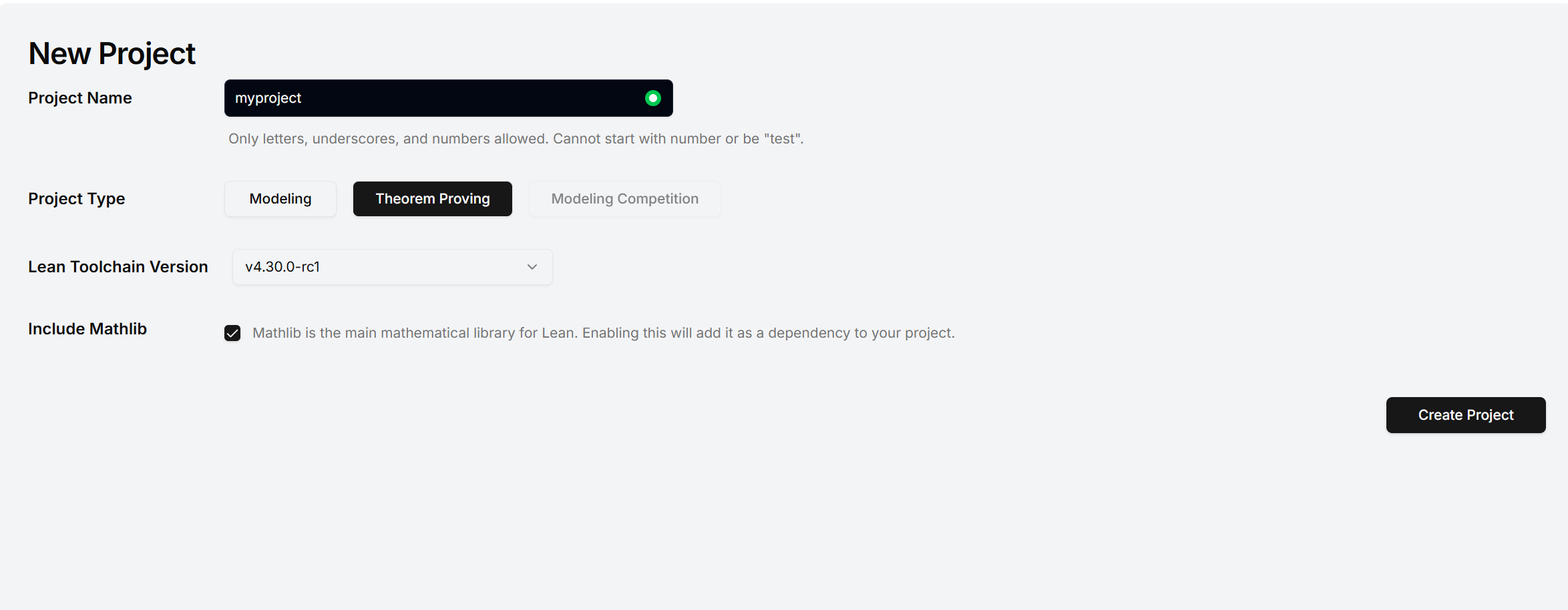
- Alternatively, start via Theorem Proving Templates from the home page. The AI interaction leverages the core Reaslingo (Reaslab-agent) functionality. Just open any
.leanfile and use the Chat panel to invoke it.
Basic Features
- Rich Editor & Infoview: Direct Lean 4 support with code highlighting, hover documentation, and an Infoview right sidebar tracking current goals, hypotheses, and diagnostic states.
- Project Search & Semantic Search: Comprehensive tools to find theorems, definition symbols, or variables (like Moogle, Lean Search, and State Search functionality).
- Format Conversion: The connected AI assistant can translate pure mathematical declarations written in Markdown, LaTeX, or scanned PDFs natively into Lean properties and logical code blocks!
AI-Assisted Formalization
Completing Existing Lean Files
Within a Lean project, the AI chat can help complete and refine formalization in existing .lean files. In practice, you can first add the relevant code snippet, the whole file, or even the containing folder into chat context, then state the exact task: complete sorry, explain the current proof state, add missing intermediate lemmas, or optimize a local proof without changing the overall structure. This gives the model enough surrounding definitions, theorems, and project conventions to produce more targeted Lean code.
Example prompts:
- "Please read the Lean file I just attached, locate the
sorry, and fill in runnable proof code." - "Please only handle the first
sorryand do not change any other definitions." - "Please explain the current goal and hypotheses first, then give a tactic-based proof attempt."
- "Please keep the current file structure unchanged and only complete the missing proof for this theorem."
Formalizing Theorems from Markdown, LaTeX, or PDF
ReasLab can send text, files, and screenshots directly into AI chat, so Markdown files, LaTeX fragments, and PDF materials can all be used as source input for Lean formalization. A practical workflow is to first ask the AI to extract the mathematical statement, then ask it to generate the corresponding Lean theorem declaration. If needed, you can continue by requesting auxiliary definitions, helper lemmas, or a proof sketch.
Example prompts:
- "Please formalize Theorem 2.1 from the attached Markdown file as a Lean 4
theoremdeclaration." - "Please identify the definitions and main theorem in this LaTeX file, and generate the Lean definitions first."
- "Please extract the target theorem from this PDF and rewrite it as a Lean theorem suitable for the current project."
Usage tips:
- If the source statement is long, first ask the AI to summarize it into a precise mathematical proposition.
- Then ask it to generate the Lean content step by step: definitions, theorem statement, and proof.
- For harder results, ask for the theorem statement and required helper lemmas first, then complete the proof incrementally.
Formalizing a Theorem Directly into the Project
If you already know the theorem you want to formalize, you can provide the proposition directly in chat and combine it with the current project files or directory context. This is useful when adding new formalization to an existing Lean project or when you want the AI to draft code that already follows the repository's file organization.
Example prompts:
- "Please formalize this proposition as a Lean theorem and generate code that can be added to the current project."
- "Please follow the current directory structure and draft a new Lean file for this proposition."
- "Please give the theorem declaration first, then the proof idea and required helper lemmas."
Usage tips:
- Specify the target file location, naming style, and any existing definitions the result should depend on.
- Add related files into chat context first so the generated code matches the project's style.
- Use the editor and
Infoviewto further validate and refine the generated code.
Example Workflow
- After setting up the environment, prepare the proposition you want to prove, or a
.leanfile that still contains unfinishedsorryblocks. - Use
@ Add Context, or right-click the file you want to work on and choose Add File to Chat. - Enter a prompt such as:
"I have added a Markdown file as context. Please extract Theorem 2.1 from it, use it as the target statement, and help me fill in all
sorryblocks in the current project so that the file passes verification." - Use the validation feedback from
Infoviewin the sidebar to review and adopt the generated Lean code and helper lemmas.
Sample Project
(Project link placeholder)
Example Video
Watch the full scenario demos: Theorem Proving Agent · Quokka.