Markdown Editing and Preview
ReasLab lets you write and preview Markdown documents inside a project. Use Markdown for project documentation, theorem and proof notes, experiment results, or research documents that combine mathematical notation, Lean code, and diagrams.
Quick start
- Create or open a
.mdfile in your project. - Click the eye icon (Toggle Markdown Preview) in the editor toolbar.
- View the rendered document to the right of the editor.
- For a larger reading area, click Full View in the top-right corner of the preview.

The Markdown preview is closed by default. ReasLab remembers the preview state for each project and restores the last setting when you return. When a .md file is open, the editor status line displays Markdown mode.
Markdown basics
The following example covers common Markdown syntax:
# Level-one heading
## Level-two heading

This is **bold**, *italic*, and ~~struck through~~ text.

- Unordered item
- Second item

1. Ordered item
2. Second item

> This is a block quote.

[ReasLab](https://reaslab.io)

`inline code`
ReasLab also supports GitHub Flavored Markdown (GFM) features such as tables, task lists, strikethrough, and autolinks:
| Module | Status |
| --- | --- |
| Theorem statement | Complete |
| Lean proof | In progress |

- [x] Refine the theorem statement
- [ ] Complete the formal proof
If Markdown is new to you, see GitHub's Basic writing and formatting syntax. The rest of this guide focuses on ReasLab's editing, preview, and mathematical writing features.
Document outline
When a .md file is open, OUTLINE appears below the file tree in the left Explore panel and builds a document outline from its headings.
- Headings from
#through######form a hierarchy; level-one and level-two Setext headings are also included. - The outline highlights the section containing the editor cursor.
- Click an outline entry to jump to that heading in the editor.
- Use the arrow next to an entry to expand or collapse its child headings.
- Use the button in the outline header to collapse or expand all nested entries.
- Drag the separator between the file tree and outline to resize them, or click the OUTLINE header to collapse the entire outline area.
Consistent heading levels make long research notes, proof explanations, and project documentation easier to navigate.
Live preview
Markdown source and rendered output appear side by side. The preview updates automatically as you edit, without requiring a manual refresh.
Open or close the preview
Click the eye icon in the editor toolbar to toggle the preview. The setting is stored per project, so each project can retain its own layout.
Bidirectional synchronized scrolling
Scrolling is synchronized in both directions. Scrolling the source moves the preview to the corresponding content, while scrolling the preview moves the editor to the corresponding line. This keeps context aligned in documents with long equations, code blocks, or many sections.
Full View
Click the maximize button in the top-right corner of the preview to open the rendered document in a near-full-screen Markdown Preview dialog. Close the dialog to continue editing in the split layout.
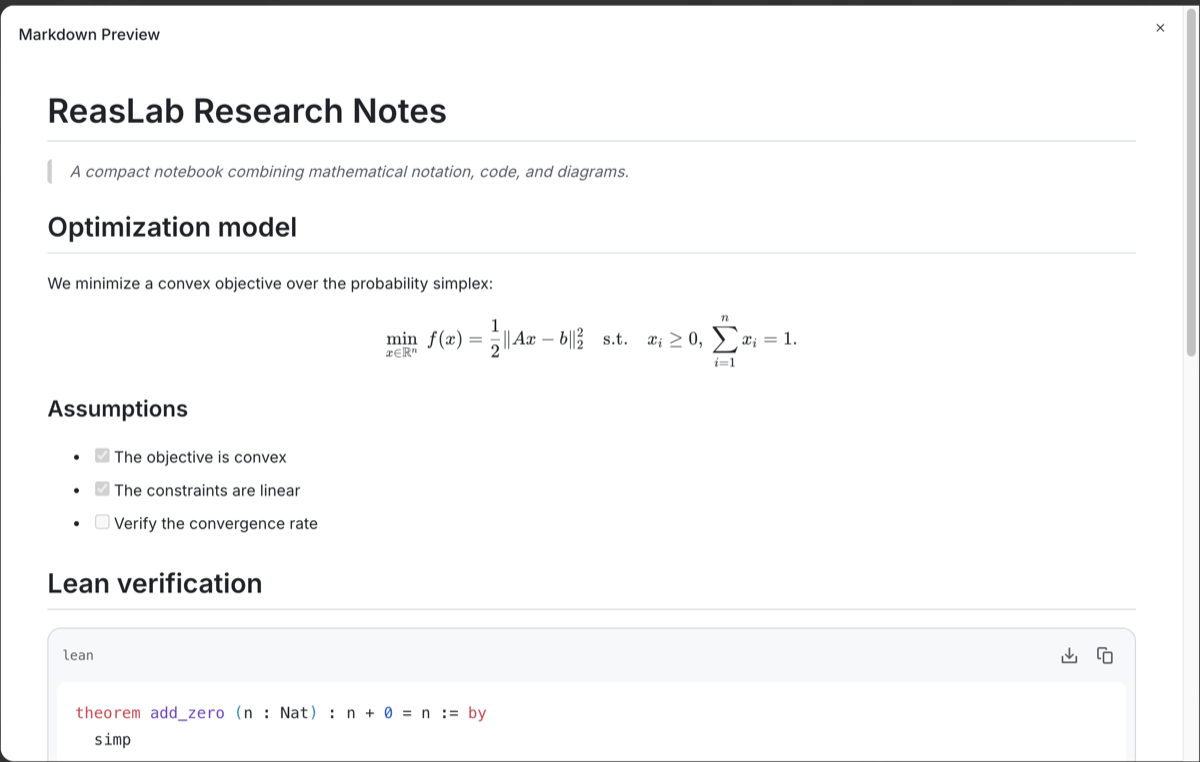
Mathematical notation
ReasLab uses KaTeX to render common LaTeX mathematical syntax and accepts both dollar and bracket delimiters.
Inline math
The function $f(x)=x^2$ reaches its minimum at \(x=0\).Display math
$$
\min_x f(x) \quad \text{s.t.} \quad Ax=b
$$

\[
\sum_{i=1}^{n} x_i = 1
\]
Math delimiters must be balanced. Escaped dollar signs, unclosed delimiters, and $ characters inside inline or fenced code are not rendered as math. See the KaTeX supported functions when you need to check a command. KaTeX renders mathematical notation; it does not provide the complete LaTeX document, package, and typesetting system.
Code blocks
Add a language identifier after the opening fence to enable syntax highlighting:
```python
def square(x):
    return x * x
```

```json
{"status": "ok"}
```
Rendered code blocks can be copied or downloaded. They are for presentation only and are not executed in the Markdown preview.
Lean code blocks
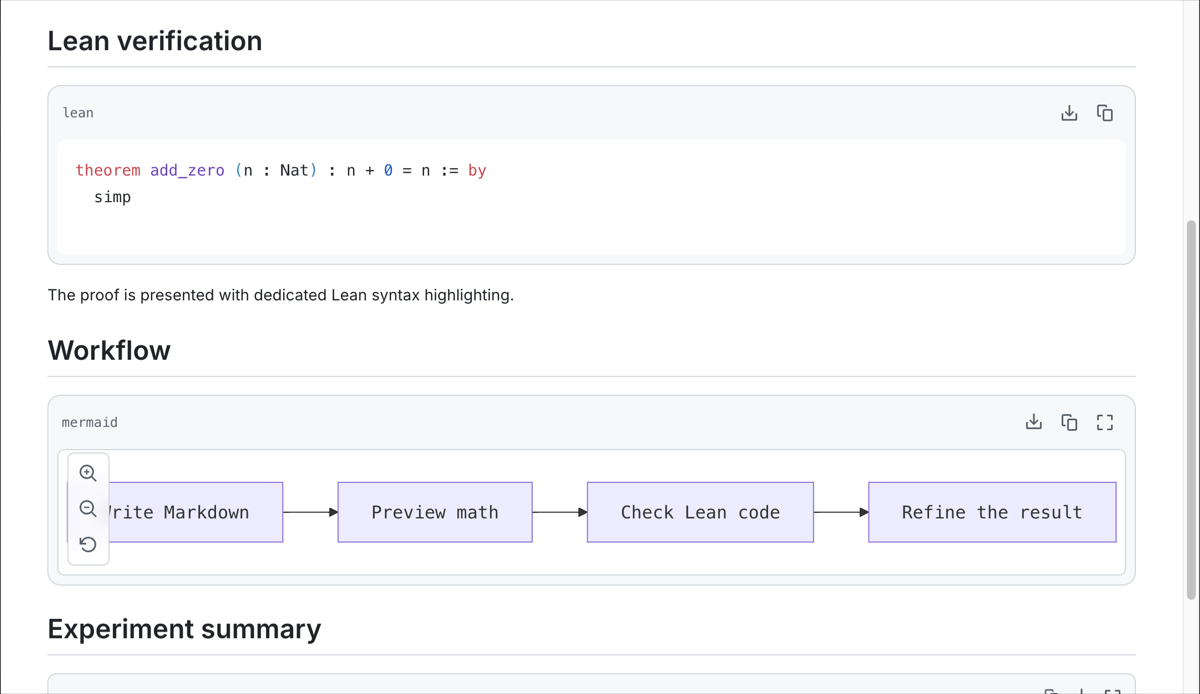
Use the lean or lean4 identifier to enable ReasLab's dedicated Lean highlighting:
```lean
theorem add_zero (n : Nat) : n + 0 = n := by
  simp
```
Lean code blocks include light and dark syntax themes and rainbow brackets. Unmatched brackets are shown in a distinct color.
Mermaid diagrams
Use a fenced code block with the mermaid identifier to render structured diagrams such as flowcharts:
```mermaid
flowchart LR
  A[Write Markdown] --> B[Live preview]
  B --> C[Refine the document]
```
Rendered Mermaid blocks include controls for copying the source, downloading the diagram, opening it in full screen, and adjusting the zoom. If a diagram does not render, first check the Mermaid syntax and the code block's language identifier.
Images and links
Images in the project
Markdown can reference images that already exist in the project. Relative paths are resolved from the directory containing the current .md file:

Use meaningful alternative text so the image remains understandable if it cannot be loaded. Paths and filenames are case-sensitive. If the preview reports that an image is unavailable, confirm that the file exists in the project and that the relative path is correct.
Remote images and web links
You can reference remote images and web pages over HTTP(S):

[Open related material](https://example.com)Remote resources also depend on the URL and the source server's access policy. Links generated by the system or AI that point to visible files in the current workspace can open those files directly in ReasLab tabs. Invalid, hidden, or cross-project file links are blocked.
Typical uses
- Project documentation: Keep directory structure, usage instructions, and collaboration conventions in
README.md. - Theorem and proof notes: Refine statements in natural language and notation before translating them into Lean.
- Code explanations: Combine algorithm descriptions, Lean or Python snippets, and results in one document.
- Research and modeling documents: Organize work with headings, equations, tables, task lists, and Mermaid diagrams.
- Team collaboration: Store background material, decisions, and follow-up tasks alongside the code they describe.
Supported scope and troubleshooting
Why is the Markdown preview missing?
Confirm that the current file uses the .md extension, then click the eye icon in the editor toolbar. The preview does not open automatically by default.
Why is an equation not rendered?
Check that its delimiters are balanced and that the expression uses commands supported by KaTeX. Complete LaTeX documents, package loading, bibliographies, and cross-references are outside the Markdown math preview.
Why is an image unavailable?
Confirm that the image exists in the project, then check the relative path from the current .md file and the filename's capitalization. Remote images may also be restricted by the network or source server.
Why did a code block not run?
Markdown code blocks provide presentation, highlighting, copying, and downloading; they do not execute code. Use the corresponding source file to run Python or verify Lean code.
Are arbitrary HTML and other Markdown extensions supported?
ReasLab sanitizes HTML embedded in Markdown, so arbitrary HTML tags, attributes, and scripts are not guaranteed to render unchanged. Non-GFM extensions such as footnotes are also outside the currently documented support.
Related guides
- Workspace: Learn about the editor, file tree, and sidebar layout.
- Lean Tooling: Write and verify Lean code.
- Lean Formalization: Translate natural-language, Markdown, or LaTeX statements into Lean.
- AI Assistant: Add project files to a conversation and get help refining content.
- LaTeX Editing and PDF Preview: Write and compile complete LaTeX documents.