Collaboration
ReasLab supports synchronous editing and review flows so teams can move quickly while maintaining rigor.
Invite collaborators
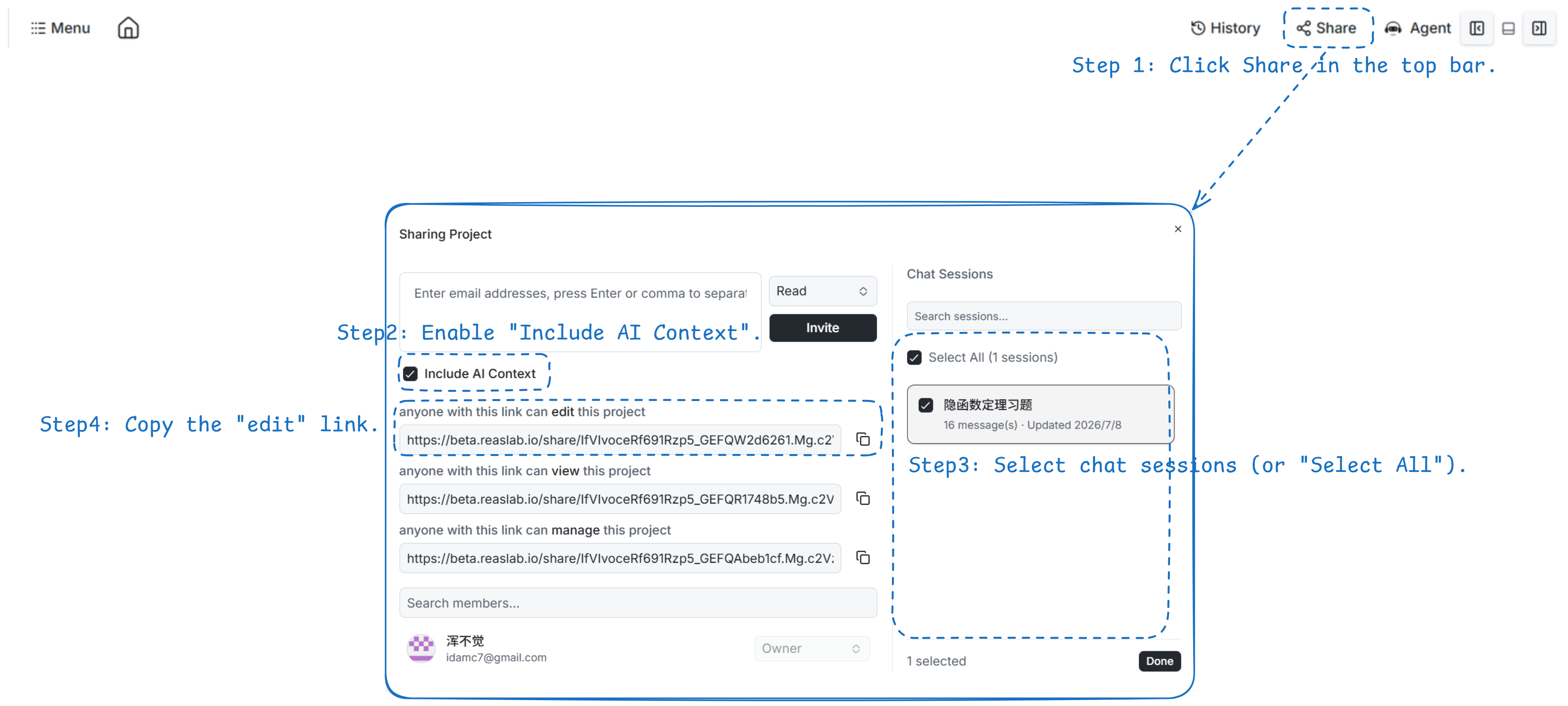
Click Share in the top bar to open the sharing dialog. From here you can invite collaborators, manage access, and optionally share ReasLingo chat history with the project.
Email and link sharing
- Email sharing: Enter email addresses in the text field, separated by Enter or commas. Choose permission as read-only or editable, then click Invite.
- Share link: Copy an Edit, View, or Manage link depending on the permission you want to grant.
You can also view all collaborators in this dialog — the right side of the list shows each person's permission.
Include AI chat history
When inviting collaborators or creating a share link, check Include AI Context to share your ReasLingo chat sessions along with the project.
- Check Include AI Context.
- In the Chat Sessions panel on the right:
- Select none to share all sessions.
- Search by title or message content.
- Pick specific sessions, or use Select All.
- Send an Invite or copy a share link as usual.
How sharing works:
- Email invite: Selected sessions are copied to each new collaborator. No selection shares all sessions.
- Share link: Included sessions are shared when the recipient joins via the link.
Leave Include AI Context unchecked to share only project files.
Remove a collaborator
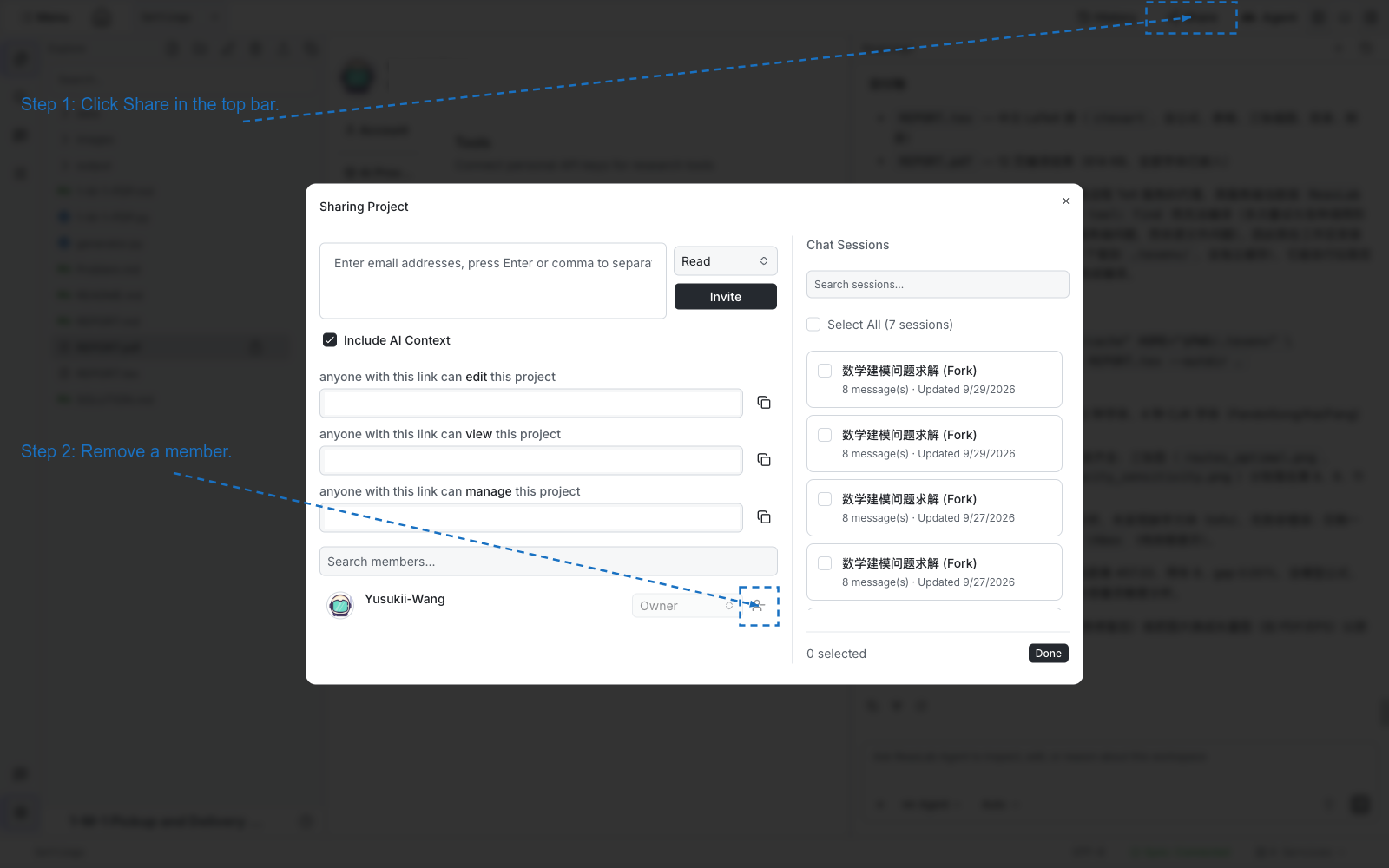
In the member list, each row has a remove icon.
- Click Share in the top bar.
- Find the person under the member search.
- Click the remove icon.
- In the dialog titled Remove {name}?, click Confirm. They lose access to the project immediately. This cannot be undone.
The icon is disabled on your own row — you cannot remove yourself. An Owner can remove other members. An Admin can remove Read or Write members, not another Admin or the Owner. If you do not have permission, the icon stays disabled.
Send copies to existing collaborators
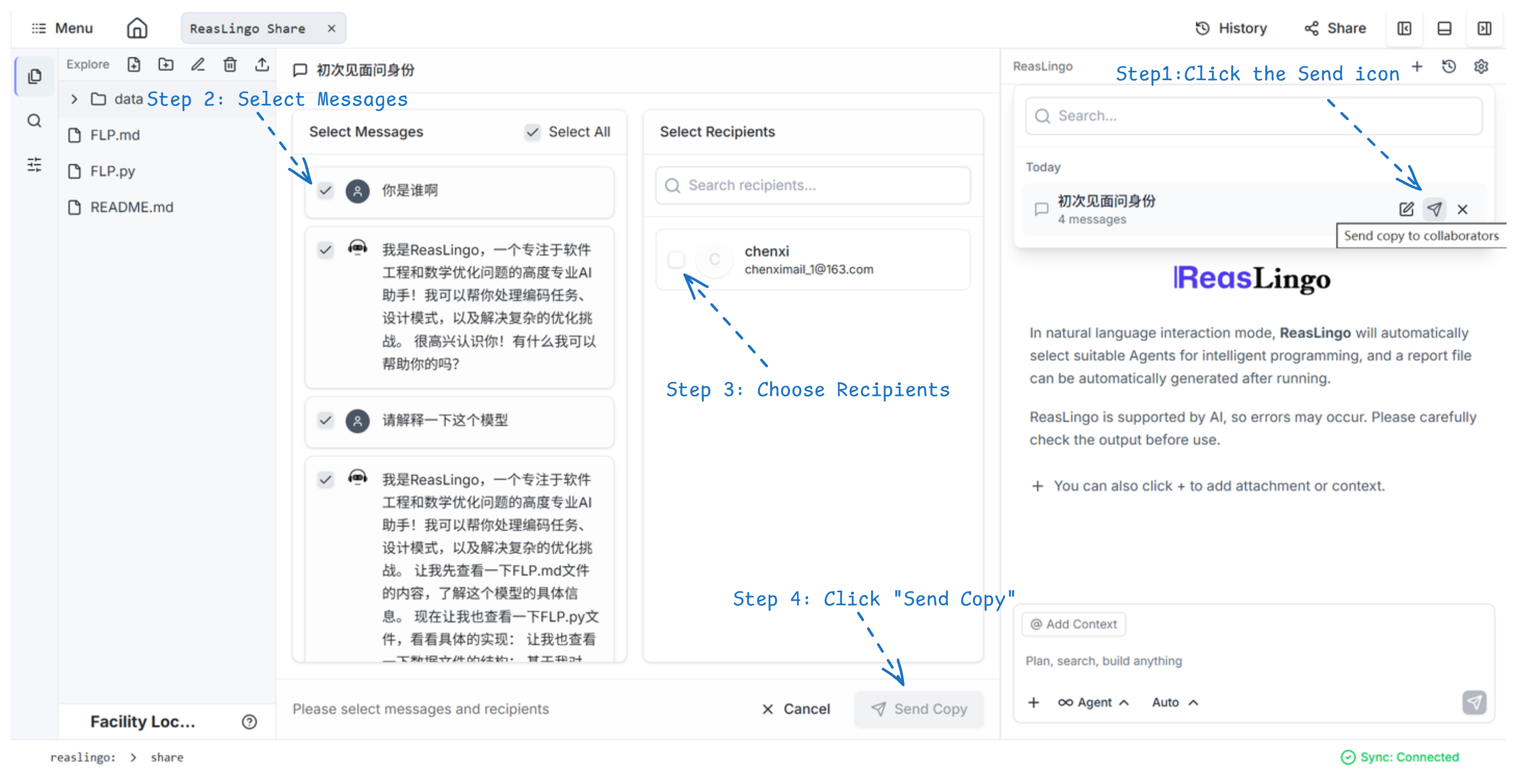
For collaborators already in the project, open Chat History in ReasLingo and click Send copy to collaborators on a session. Share the full thread or selected messages.
Real-time sessions
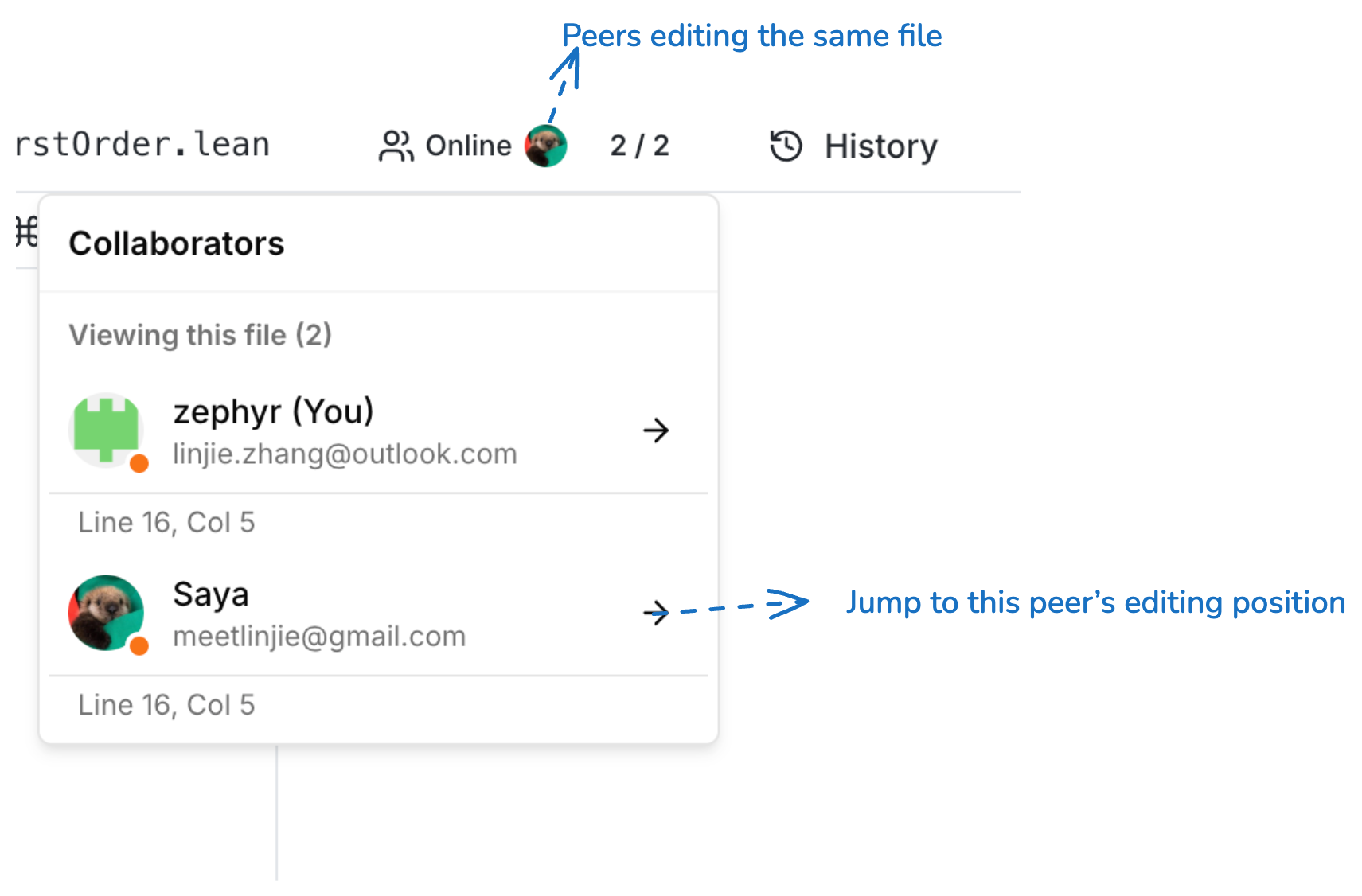
- Edits synchronize instantly between participants working in the same project.
- The Online peers panel lists everyone connected to the current file or project.
- Follow a collaborator by jumping to their cursor position when you need to work on the same file together.
Stay aligned
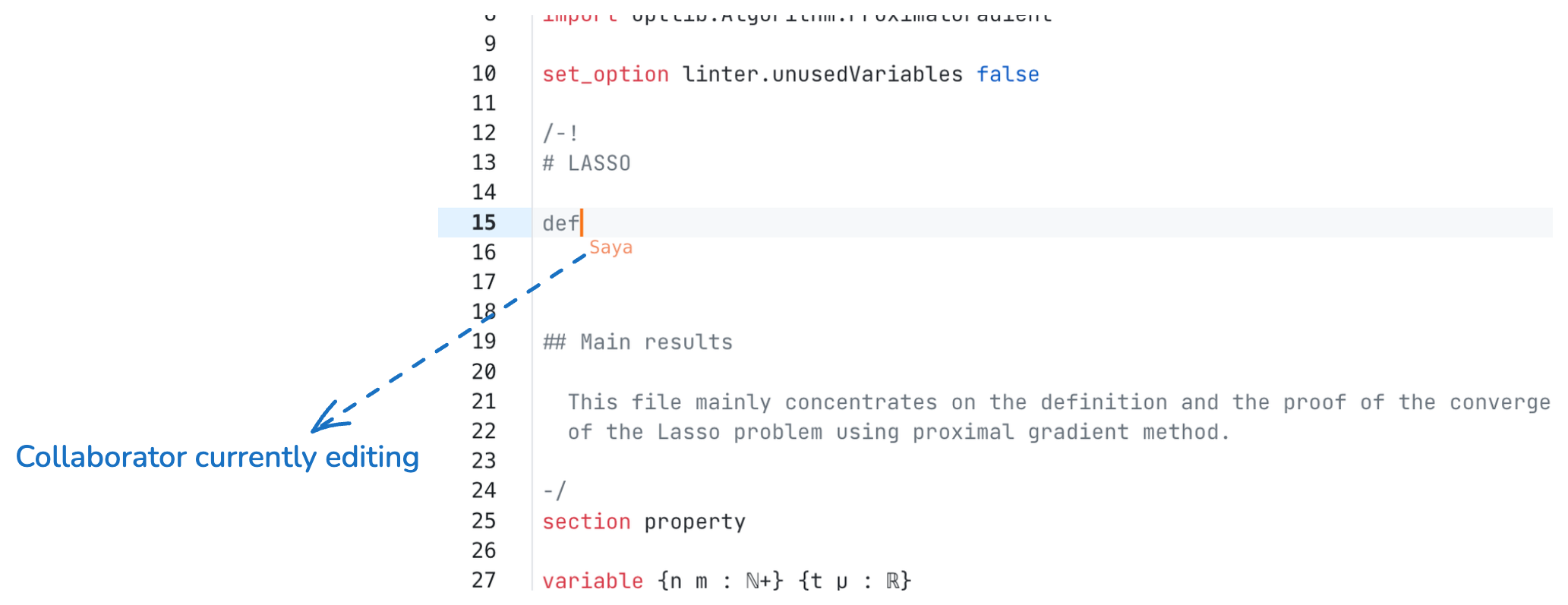
- Cursors and selections display collaborator presence inside the editor.
- Check the project History to review past snapshots, restore earlier work, or provide asynchronous feedback.
Collaboration Indicators
- See who is currently viewing the same file — each peer's avatar and cursor position is visible in real time.
- Click the peers panel to jump to a collaborator's cursor location.
- When multiple people edit the same line, color-coded cursors show each user's position without conflict.