Workspace
The Workspace guide covers the overall interface layout — how the top bar, sidebars, editor, and info panels work together to create a seamless editing environment in ReasLab.
Interface at a glance

- Top bar: Contains the menu, open tabs (files), real-time collaborator count for the current file and the entire project, and access to project history.
- Left sidebar: Switch between the directory tree, full-text search, and semantic search.
- Editor center: Write Lean code and Markdown documents with standard developer experience including undo/redo, in-file search, command palette, and symbol palette.
- Right sidebar: The Infoview for Lean code — showing live goals/hypotheses — or a real-time rendered preview for Markdown.
Workspace layout
ReasLab organizes the workspace around several core panes that stay in sync as you type:
Top bar and tabs
- Project Menu: Provides global operations such as project settings, member management, and export options.
- Tabs: Click a tab to switch files; drag to reorder.
- Online Peers: Shows the number of collaborators currently online for the current file and the entire project. Hover to see each collaborator's cursor position.
- Project History: Browse and restore historical snapshots of any file.
Left sidebar
The left sidebar has three toggle icons at the top, each opening a different panel:
- Files — A hierarchical directory tree. Create, rename, delete files and folders; drag files from your desktop to upload directly.
- Search — Run full-text or regex search and replace across all open files.
- Semantic — AI-powered semantic search that understands mathematical meaning rather than matching keywords. See the Lean guide for details.
Editor center
- Toolbar above the editor provides undo/redo, comment toggling, in-file search, the command palette, and the symbol palette.
- Command Palette: Press
Cmd/Ctrl + Kto invoke it. Type to filter and quickly execute hundreds of actions. - Status bar at the bottom shows the current mode (Lean or Markdown), connection status, cursor position, and the active Lean toolchain version.
Right sidebar
- Lean files automatically open the Infoview, which shows proof goals (Goals), available assumptions (Hypotheses), and inline diagnostic information in real time.
- Markdown files display a live preview with synchronized scrolling — what you see in the editor is exactly what appears in the preview.

File Explorer
The system provides a clear project tree layout on the left panel. From here you can:
- Create Files/Directories: Click on the plus icon on the header to create new files or folders at any level of the directory hierarchy.
- Drag & Drop: Rapidly move folders and files by dragging them inside your browser. You can also drag files from your desktop directly into the file tree to upload them.
- Context Menu: Right-click any file or folder to access rename, delete, duplicate, or move actions.
- File Icons: File types are automatically distinguished by distinctive icons — Lean files, Markdown, images, configuration files, and more at a glance.

File History & Snapshots

Every save is automatically tracked. You can:
- Browse history: Open the revisions history panel to see a timeline of changes to any file, complete with timestamps and author names.
- Restore previous versions: Click any historical snapshot to preview its contents, then restore with one click if needed.
- Compare diffs: View side-by-side differences between the current file and any historical version.
Global Text Search
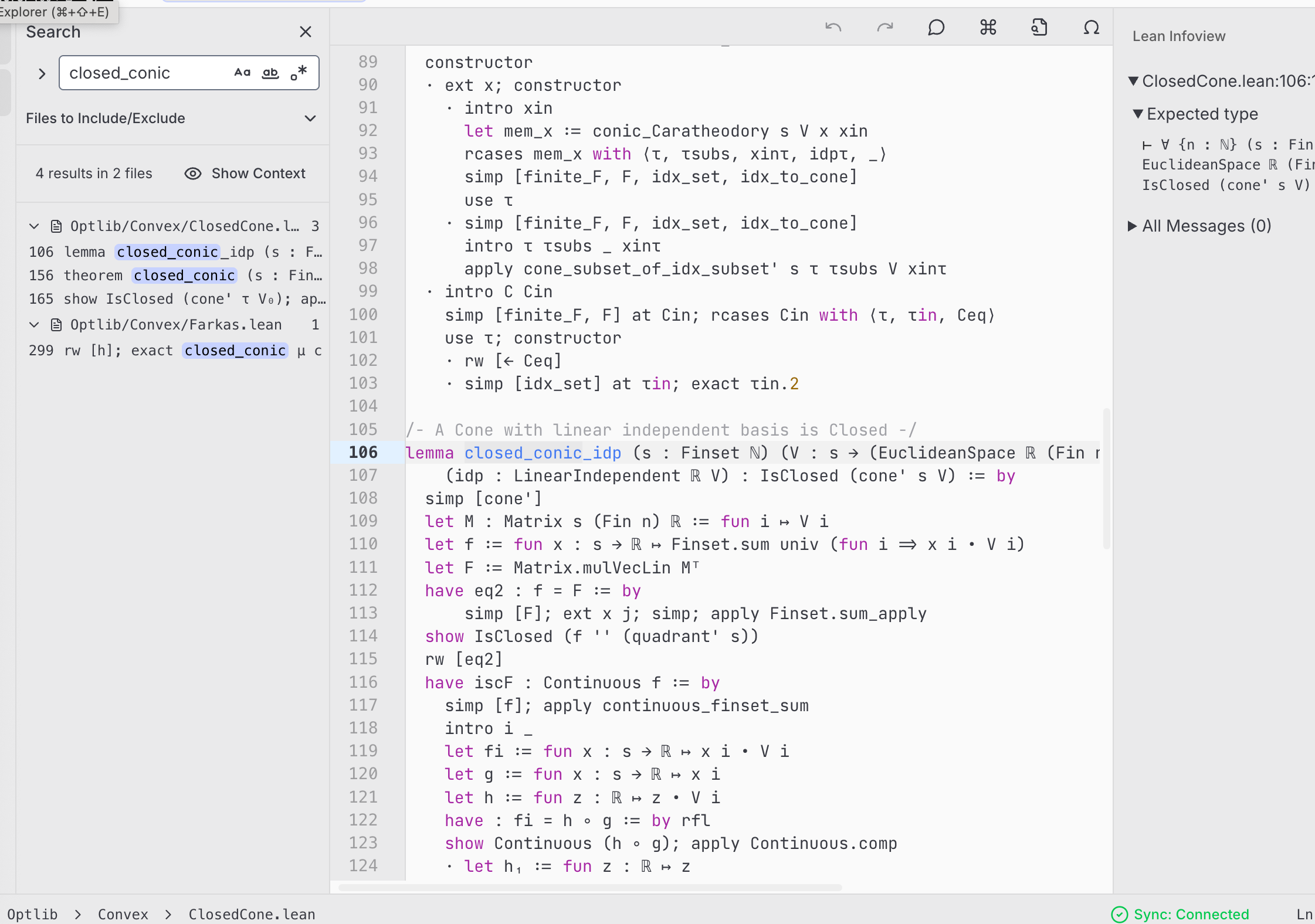
You can search through all active files via the Search toggle available in the sidebar:
- Full-text search: Enter any keyword or phrase to find all occurrences across your project.
- Regex support: Toggle regex mode to search with full regular-expression patterns.
- Replace in context: The search panel also supports search-and-replace across all matched files — preview changes before applying them in bulk.
Search Keyboard Shortcuts
| Shortcut | Action |
|---|---|
Cmd/Ctrl + Shift + F | Open global search |
Enter | Find next match |
Shift + Enter | Find previous match |
Cmd/Ctrl + Enter | Replace current match |
Cmd/Ctrl + Shift + Enter | Replace all matches |
Collaboration Indicators
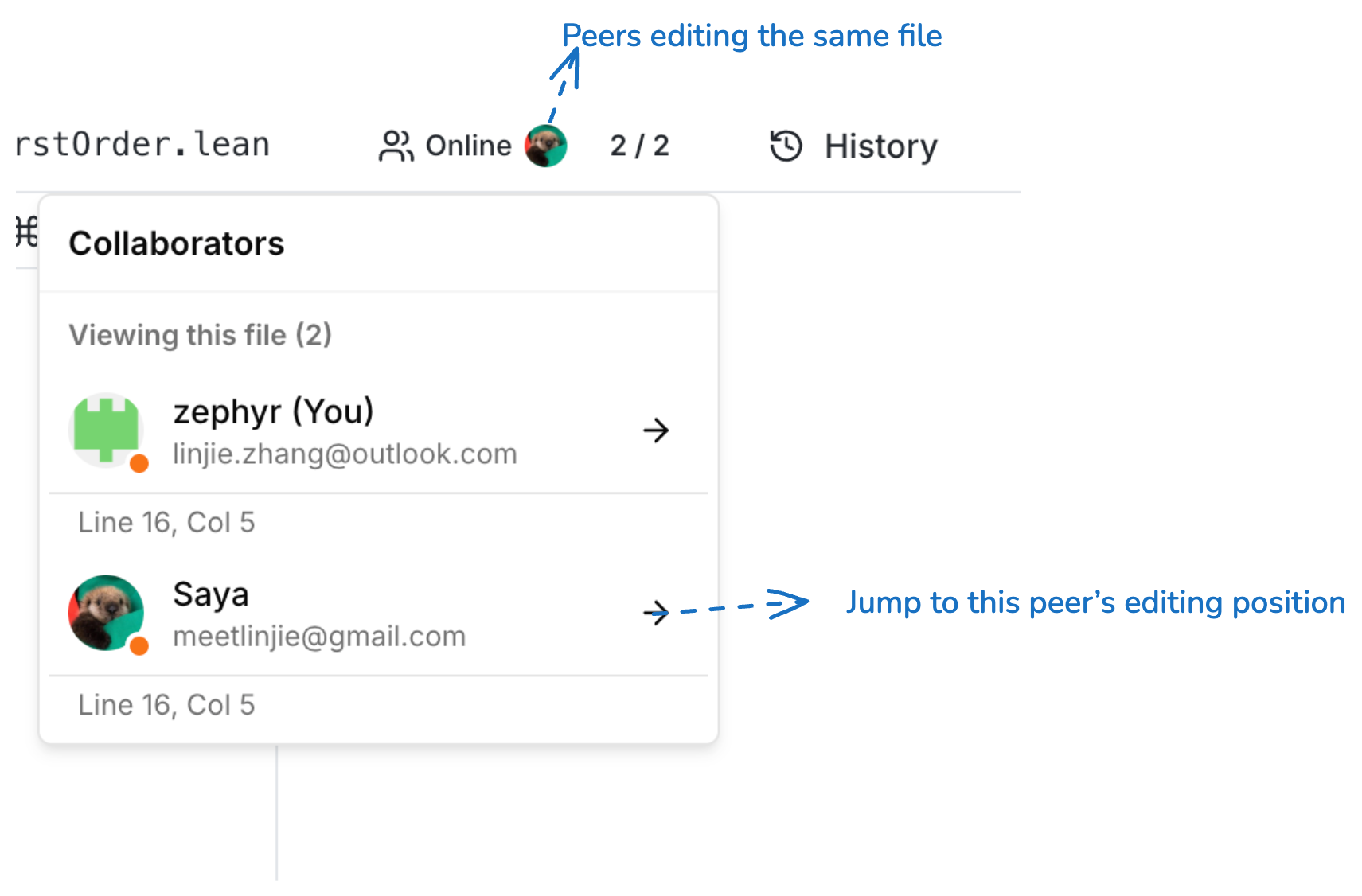
- See who is currently viewing the same file — each peer's avatar and cursor position is visible in real time.
- Click the peers panel to jump to a collaborator's cursor location.
- When multiple people edit the same line, color-coded cursors show each user's position without conflict.