LaTeX Editing and PDF Preview
ReasLab brings LaTeX editing, compilation, and synchronized PDF preview into one workspace, with completion and diagnostics built in and ReasLingo available when you need help.
Quick start
- Create or open a
.texfile. - Click the eye icon (Toggle TeX Preview) in the editor toolbar.
- Click Compile to build the resolved root document.
- Edit the source and inspect the PDF to the right.

When a compiled PDF already exists, ReasLab loads it when the preview opens. If no PDF is available, ReasLab can start a build automatically. Use Compile whenever you want to rebuild the latest source explicitly. The compiled PDF appears in the file tree with a lock icon; it is produced by the build and cannot be edited directly.
Editing LaTeX
Language assistance
The editor connects to TexLab and provides language-aware features while you type:
- Syntax highlighting, bracket matching, and code folding.
- Completion for LaTeX commands, packages, labels, references, and citation keys from project
.bibfiles. - Signature help and hover documentation for supported commands and symbols.
- Automatic insertion of a matching
\end{...}when completing or entering an environment. - Inline errors and warnings in the editor and lint gutter.
- Go to Definition in the editor context menu.
- Format Document in the editor toolbar.
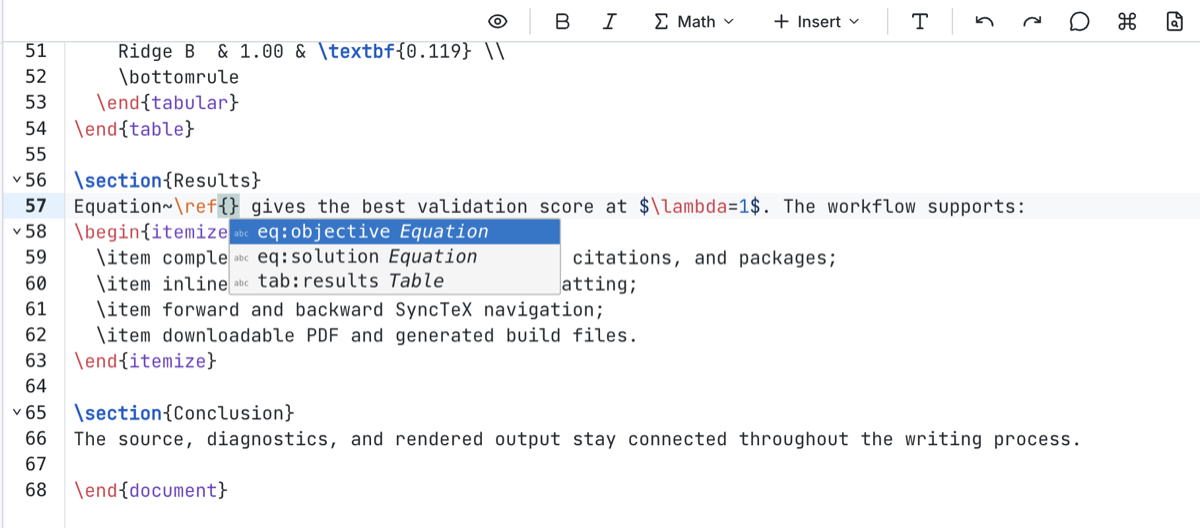
Editor toolbar
The LaTeX toolbar provides shortcuts for common source edits:
- Bold and Italic wrap the selection in
\textbf{...}or\textit{...}. - Math inserts inline
\(...\)or display\[...\]math. - Insert adds sections, subsections, bulleted or numbered lists, and 2×2, 3×3, or 4×4 table templates.
- Format Document applies formatting edits returned by TexLab.
On a narrow editor pane, the less frequently used actions move into More LaTeX actions.
Math formula preview
With Math Formula Preview enabled, placing the cursor in a mathematical expression opens a rendered formula preview. This is a lightweight editor aid; the compiled PDF remains the authoritative document output.
Outline and code folding
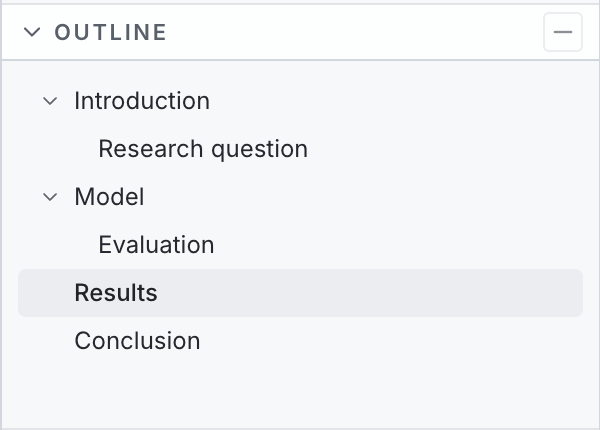
The OUTLINE area below the file tree displays the section hierarchy reported for the active TeX file.
- Click a section or subsection to move the editor cursor to it.
- Expand or collapse nested entries, or use Collapse All and Expand All in the outline header.
- The entry containing the cursor is highlighted.
- Folding controls in the editor gutter can collapse sections, environments, and groups while leaving the heading visible.
Choosing what to compile
A project can contain a root document and many included files. Before each explicit compilation, ReasLab resolves the build target instead of assuming that the active file should always be compiled directly.
ReasLab applies the following rules in order and uses the first one that resolves to a valid target:
- A
% !TEX root = ...directive in the active file. - Whether the active file is itself a compilable root.
- The dependency graph maintained by TexLab.
- A root selected earlier in the current project session.
- The configured Main document as a fallback.
Open Compile options to inspect the current Build target and the reason shown next to Resolved by.
Set an explicit root
Place a root directive within the first 20 lines of an included file. The path is relative to that file:
% !TEX root = ../main.texThe target must be an existing TeX file inside the project. An invalid directive is reported instead of being silently ignored.
Choose between multiple roots
If more than one root document includes the active file, compiling opens Choose a TeX root. Select the intended document; ReasLab remembers the choice for that source file during the current project session.
Configure the main document
Use Menu → Settings → LaTeX → Main document to select a fallback entry file. This setting is used when dependency analysis finds no compilable root or when the TexLab dependency graph is temporarily unavailable. If dependency analysis finds multiple roots, ReasLab asks you to choose instead. An explicit valid root directive takes precedence.
Compilation controls
Click the menu next to Compile to see the resolved target and additional build actions.
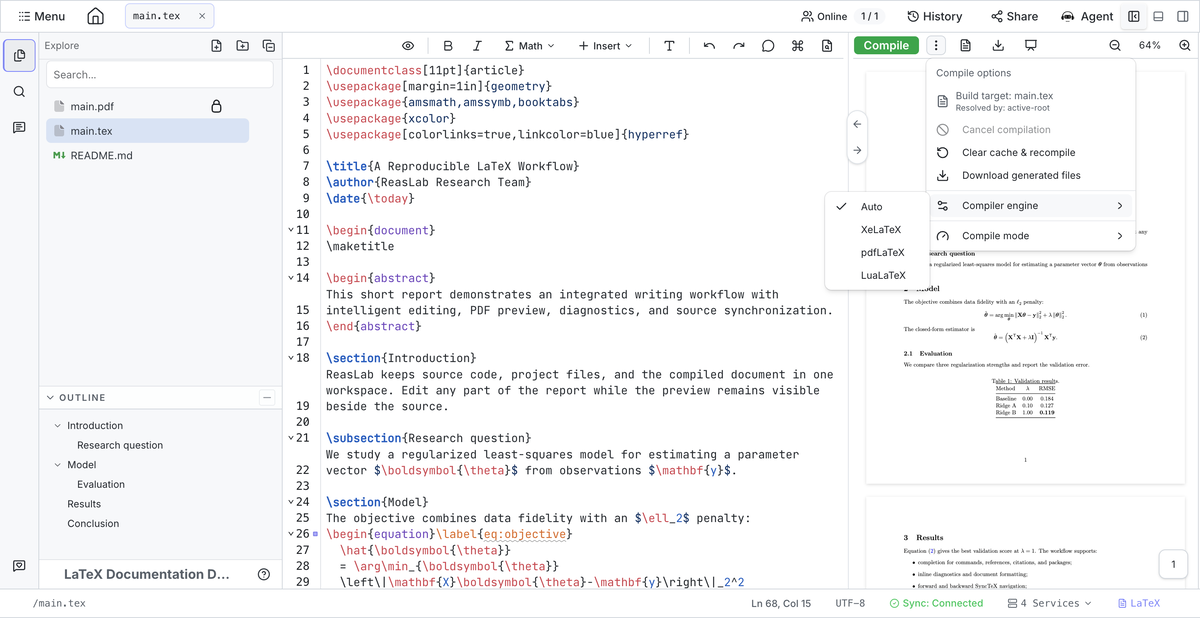
- Cancel compilation stops the active build.
- Clear cache & recompile removes LaTeX auxiliary output and the previous compiled PDF before starting a clean build.
- Download generated files packages the build artifacts for the current target as a ZIP archive.
- Compiler engine selects Auto, XeLaTeX, pdfLaTeX, or LuaLaTeX.
- Compile mode selects Normal or Fast [draft].
Fast [draft] replaces images with placeholders to reduce compilation time. Switch back to Normal before checking the final layout. With Auto, ReasLab selects a compiler for the document; after a build, the toolbar can show the resolved engine next to the Auto setting.
Each build runs the LaTeX engine as many times as the document requires and invokes BibTeX or Biber when the document defines a bibliography, so citations, cross-references, and the table of contents resolve without manual reruns.
Automatic PDF preview
Enable Auto PDF Preview under Menu → Settings → LaTeX to rebuild after source changes. Compilation starts after a short pause of about 1.5 seconds, so ordinary typing is grouped into a single build. The same root-document resolution is used for manual and automatic builds.
PDF preview
The PDF toolbar adapts to the width of the preview pane and provides:
- Previous-page, next-page, and direct page-number navigation.
- Zoom in, zoom out, and a percentage button that switches between fit width and actual size.
- Download PDF.
- Presentation Mode for a full-screen, one-page view.
- A button to switch between the PDF and the full compilation log.
Presentation Mode supports arrow keys, Page Up/Page Down, Space, Home, and End for navigation. Press Escape to leave full screen. ReasLab keeps the existing PDF visible while a new build is running when possible and remembers the PDF scroll position for each source document.
SyncTeX navigation
After a successful build, SyncTeX connects source locations with positions in the PDF.
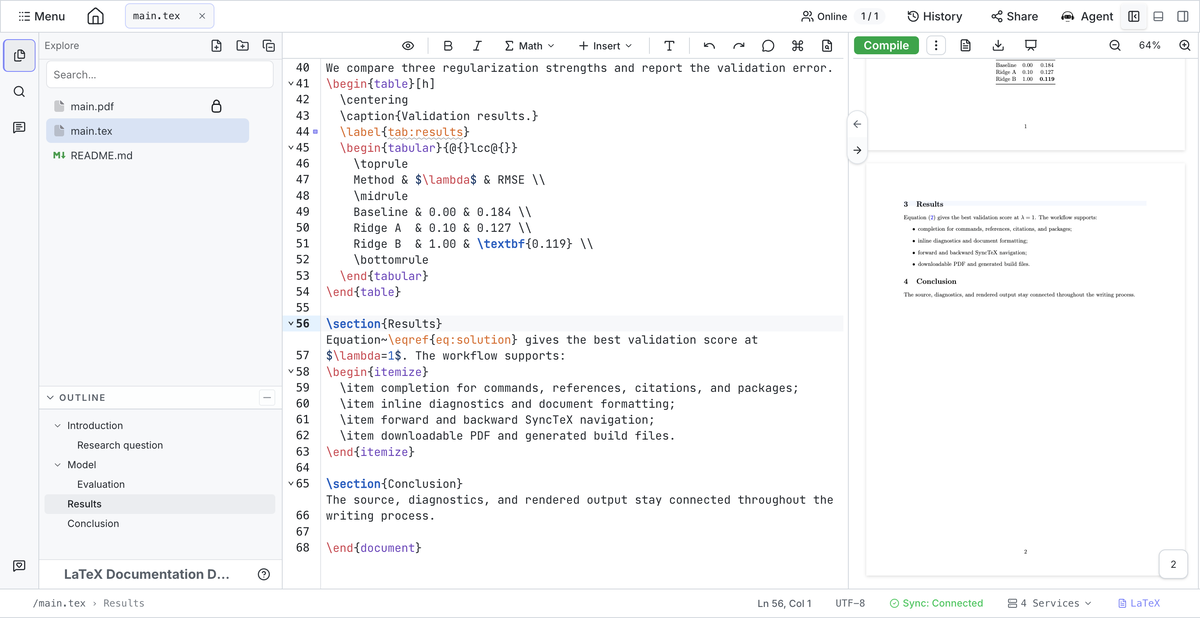
Source to PDF
- Place the cursor in a TeX file and click the right arrow on the divider between the editor and PDF.
- Alternatively, right-click in the editor and select Jump to PDF (SyncTeX Forward).
The PDF scrolls to the corresponding page and briefly highlights the matched area.
PDF to source
- Click the left arrow on the divider to map the center of the current PDF viewport back to the source.
- Double-click a position in the PDF to navigate from that exact location.
If the destination is in another file, ReasLab opens that file and moves the editor to the resolved line. SyncTeX requires a current compiled PDF; recompile first if the mapping is missing or stale.
Diagnostics, logs, and Chat
Inline diagnostics appear in the source as you edit. Click View full compilation log in the PDF toolbar for a project-wide, structured view of the current compilation issues.
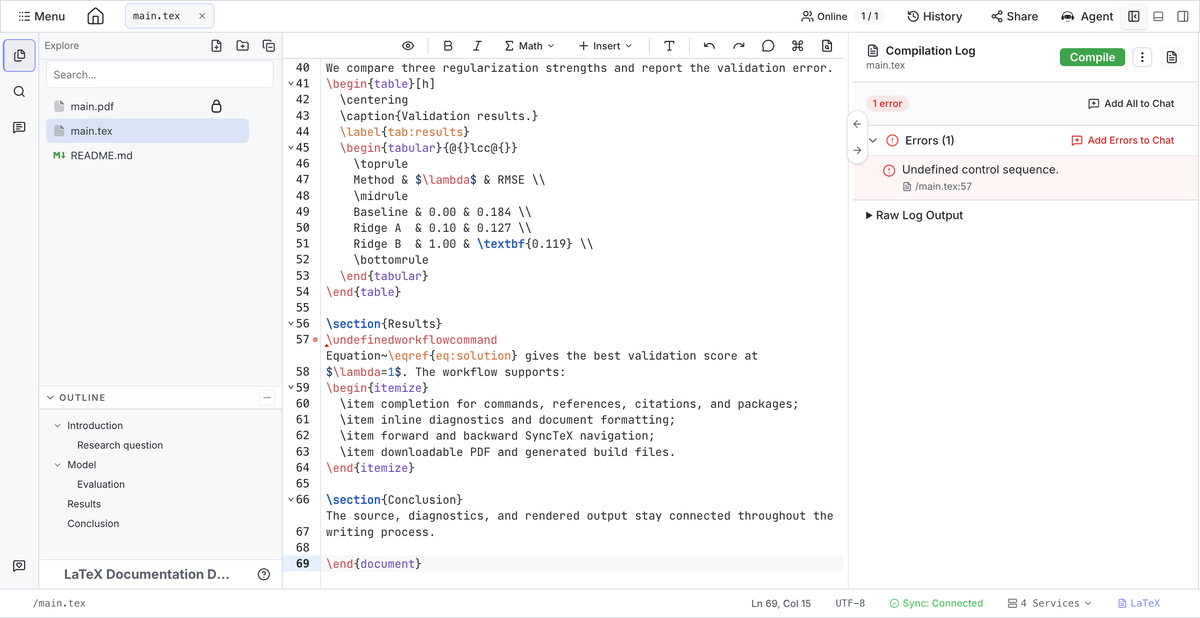
The log view groups messages into Errors, Warnings, and Typesetting information.
Click an editable file location to open the file at the reported line. If a failed build produces no PDF, the preview switches to the log and explains that no PDF was generated. Expand Raw Log Output when the structured diagnostics do not contain enough detail.
Send diagnostic context to Chat
Use the actions in the diagnostics view to attach formatted build context to Chat, where ReasLingo can help you interpret it:
- Add All to Chat attaches every displayed diagnostic.
- Add Errors to Chat, Add Warnings to Chat, and the equivalent action on the Typesetting group each attach a single group.
- Select part of Raw Log Output to reveal Add to Chat and Copy.
Adding diagnostics or log text creates a context snippet in the Chat composer. It does not send a message or modify the source automatically. Add an instruction such as:
Explain these compilation errors, identify their source, and propose a minimal fix.
Review any suggested or applied changes, then compile again to verify the document.
LaTeX settings
Open Menu, scroll to Settings, and find the LaTeX group.
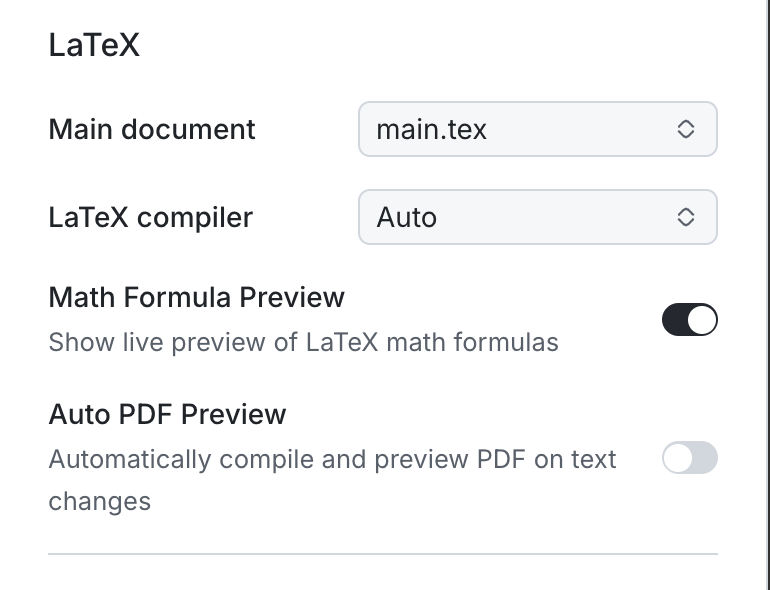
- Main document sets the fallback root document.
- LaTeX compiler selects Auto, XeLaTeX, pdfLaTeX, or LuaLaTeX for the project.
- Math Formula Preview controls the rendered math tooltip in the editor.
- Auto PDF Preview recompiles the resolved root after text changes.
The compiler can also be changed from Compile options in the PDF toolbar.
Troubleshooting
The wrong document is compiled
Open Compile options and inspect Build target and Resolved by. Check the active file's % !TEX root directive, resolve any multiple-root prompt, and confirm the configured Main document.
No PDF is generated
Open the full compilation log and address the entries under Errors. You can attach the errors to Chat for help. If the source is fixed but old auxiliary files still interfere, use Clear cache & recompile.
Fonts or Unicode text fail to compile
Auto selects an engine based on the document. If font or Unicode compilation still fails, choose XeLaTeX or LuaLaTeX explicitly and confirm that the appropriate font and language packages are loaded.
Automatic preview does not update
Confirm that Auto PDF Preview is enabled, pause briefly after editing, and check that ReasLab can resolve a build target. Use Compile to test the same target manually.
SyncTeX cannot find a location
Compile the current source successfully, then retry from a location that contributes to the generated PDF. Comments, preamble-only commands, generated artifacts, and stale PDF data may not map to a visible position.
Related guides
- Workspace: Learn about the editor, file tree, panes, and sidebar layout.
- ReasLingo: Work with the integrated AI assistant.
- Markdown Editing and Preview: Write documentation with a lightweight live preview.