Settings
Account details, AI providers, user rules, and tool credentials are on one Settings page.
Open Settings
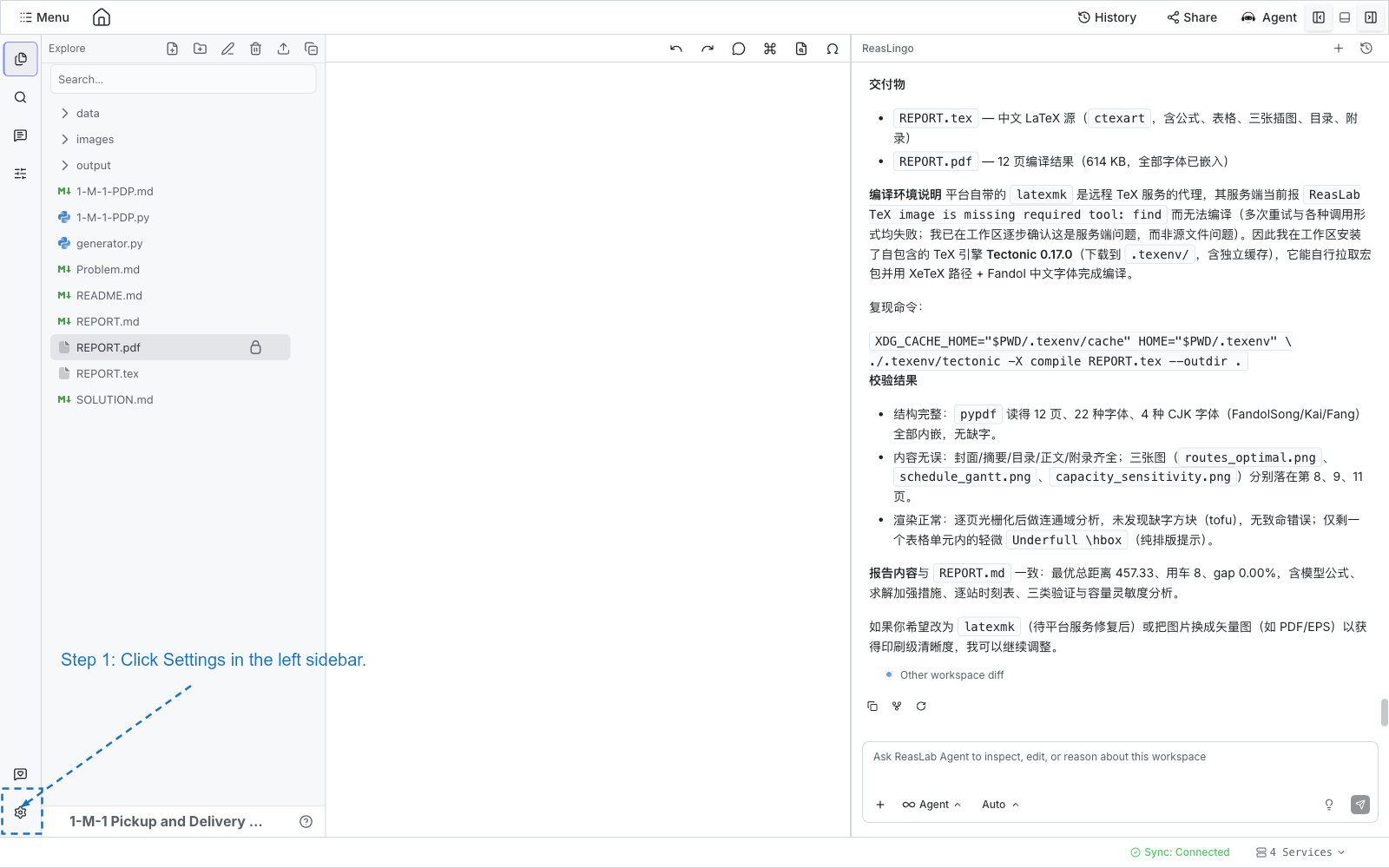
Inside a project, click the Settings gear at the bottom of the left sidebar. Settings opens as a tab beside your files.
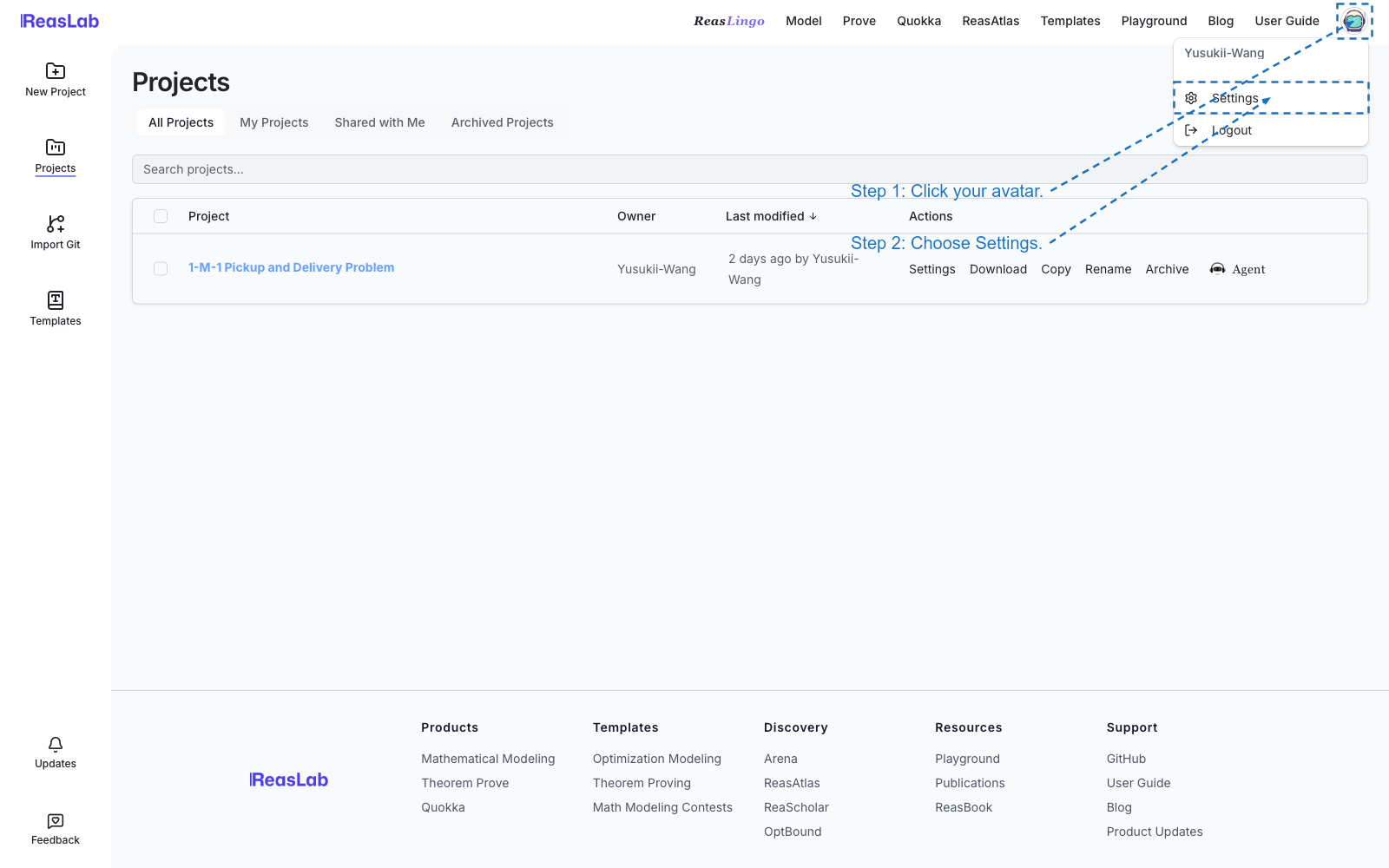
From any page, click your avatar and choose Settings. That opens the same page on its own.
Account
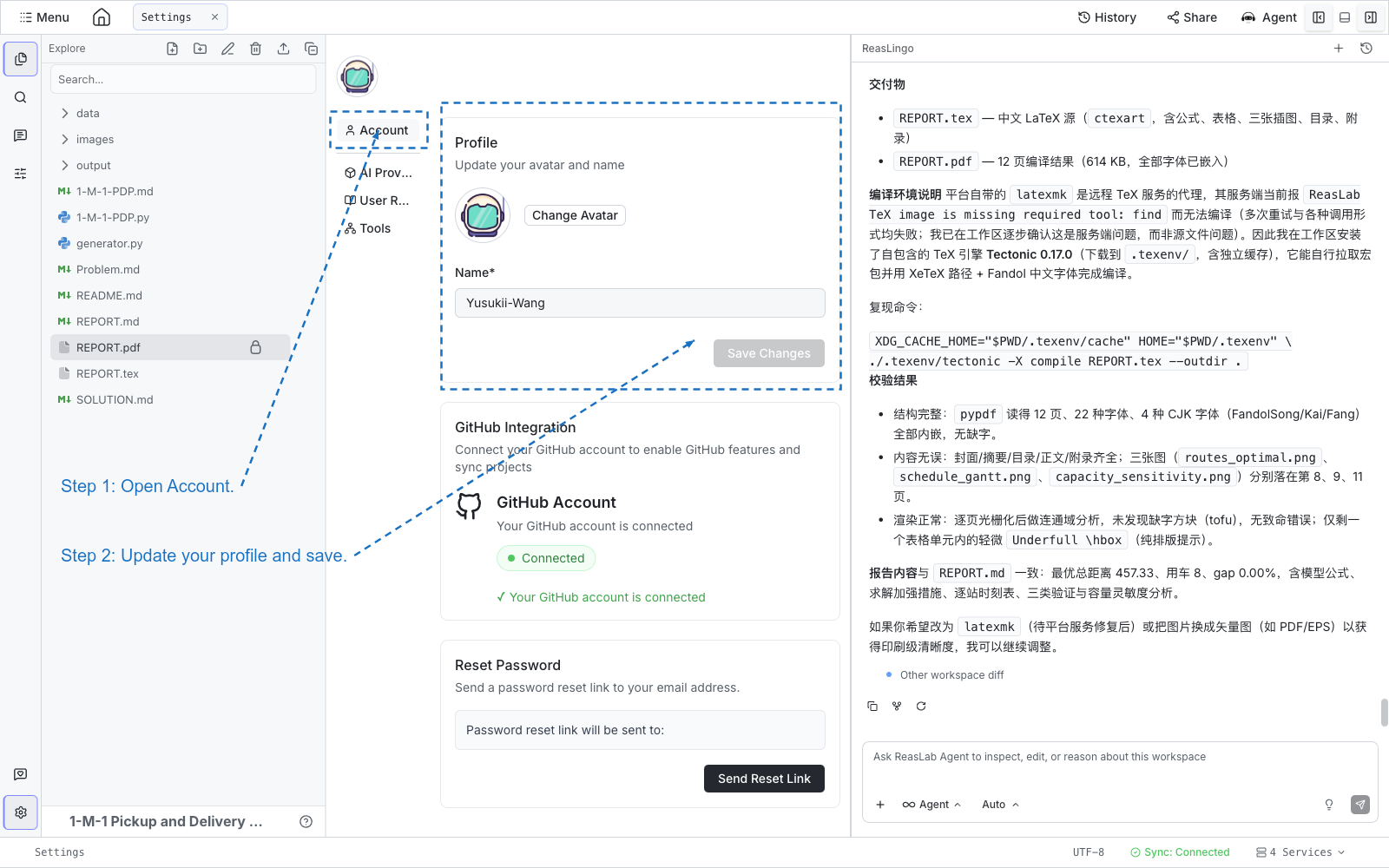
Account is the profile people see on shared projects.
- Profile: change your avatar (under 5 MB) and display name, then click Save Changes.
- GitHub Integration: shows whether GitHub is connected. A connected account is used for GitHub project features.
- Reset Password: sends a reset link to your account email.
AI Providers
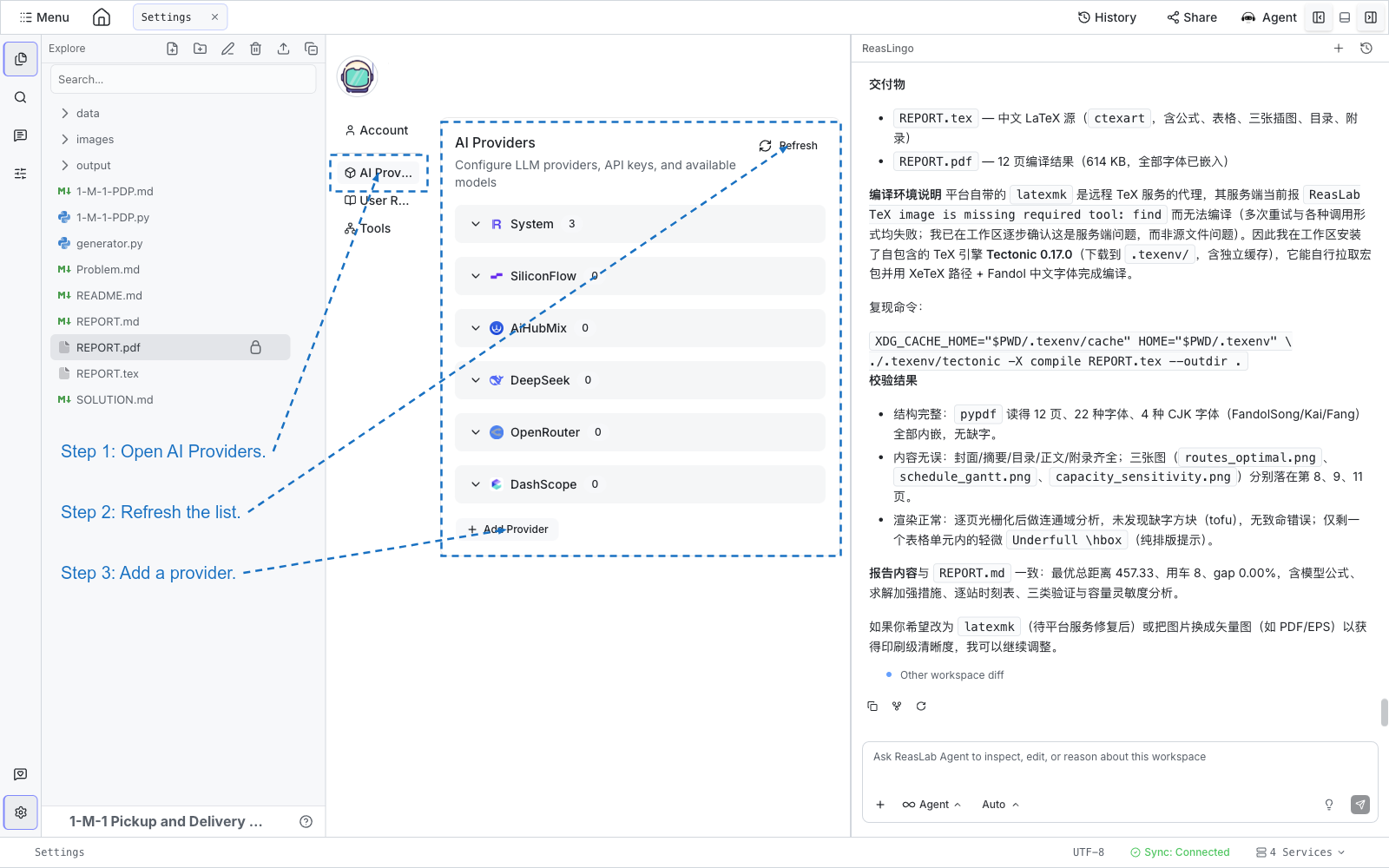
AI Providers is where ReasLingo models are managed.
- System lists the models ReasLab provides. Expand a row to see them.
- + Add Provider adds your own endpoint. Enter a name, base URL, and API key, then save.
- Expand a provider and use + Add Model to register a model id.
- Refresh reloads the list.
Provider URLs and example model ids are in AI Provider Configuration.
User Rules
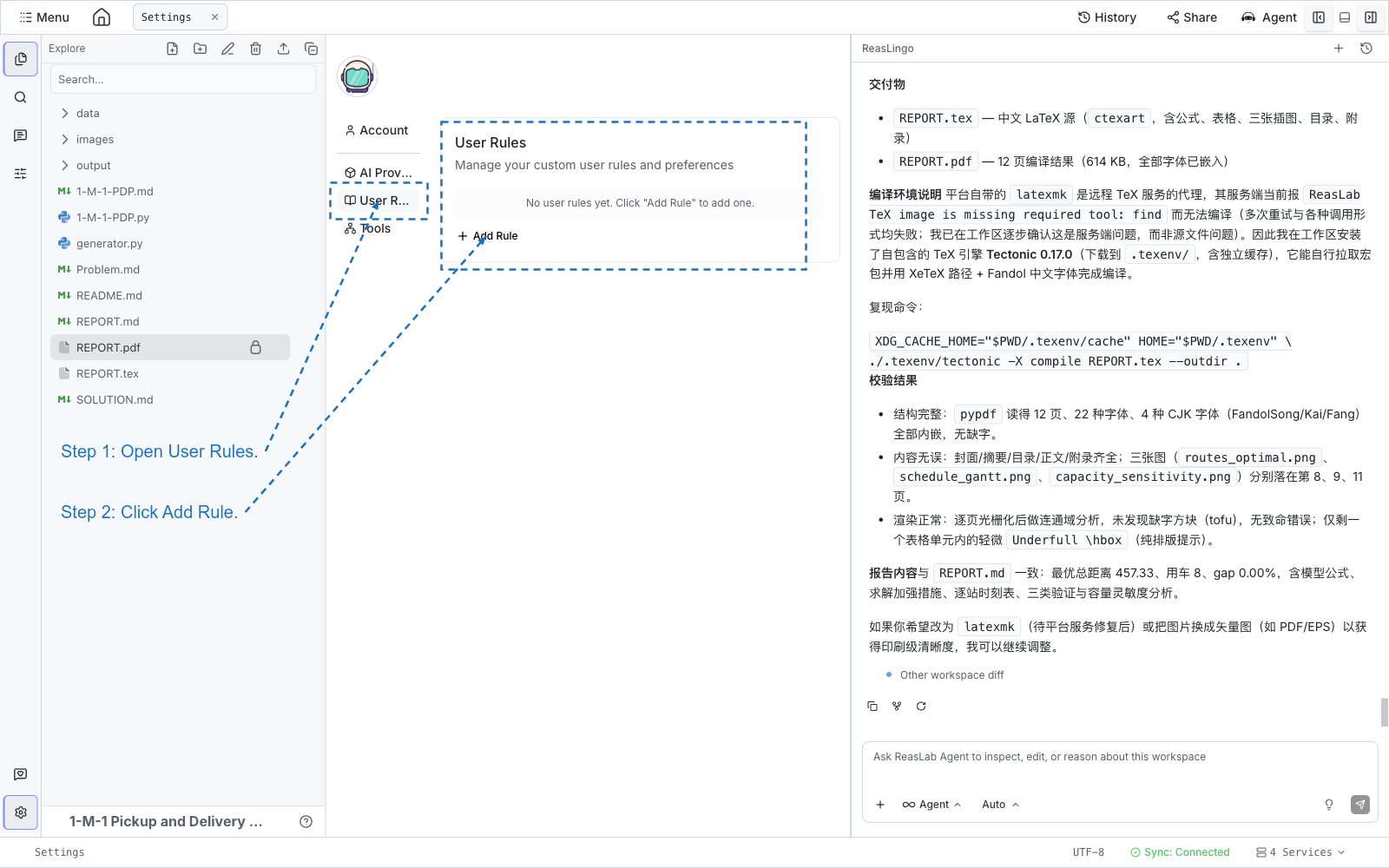
User Rules are standing instructions ReasLingo follows in your chats.
- Click Add Rule.
- Type the instruction and save.
- Use the pencil to edit a rule, or the × to delete it.
Tools
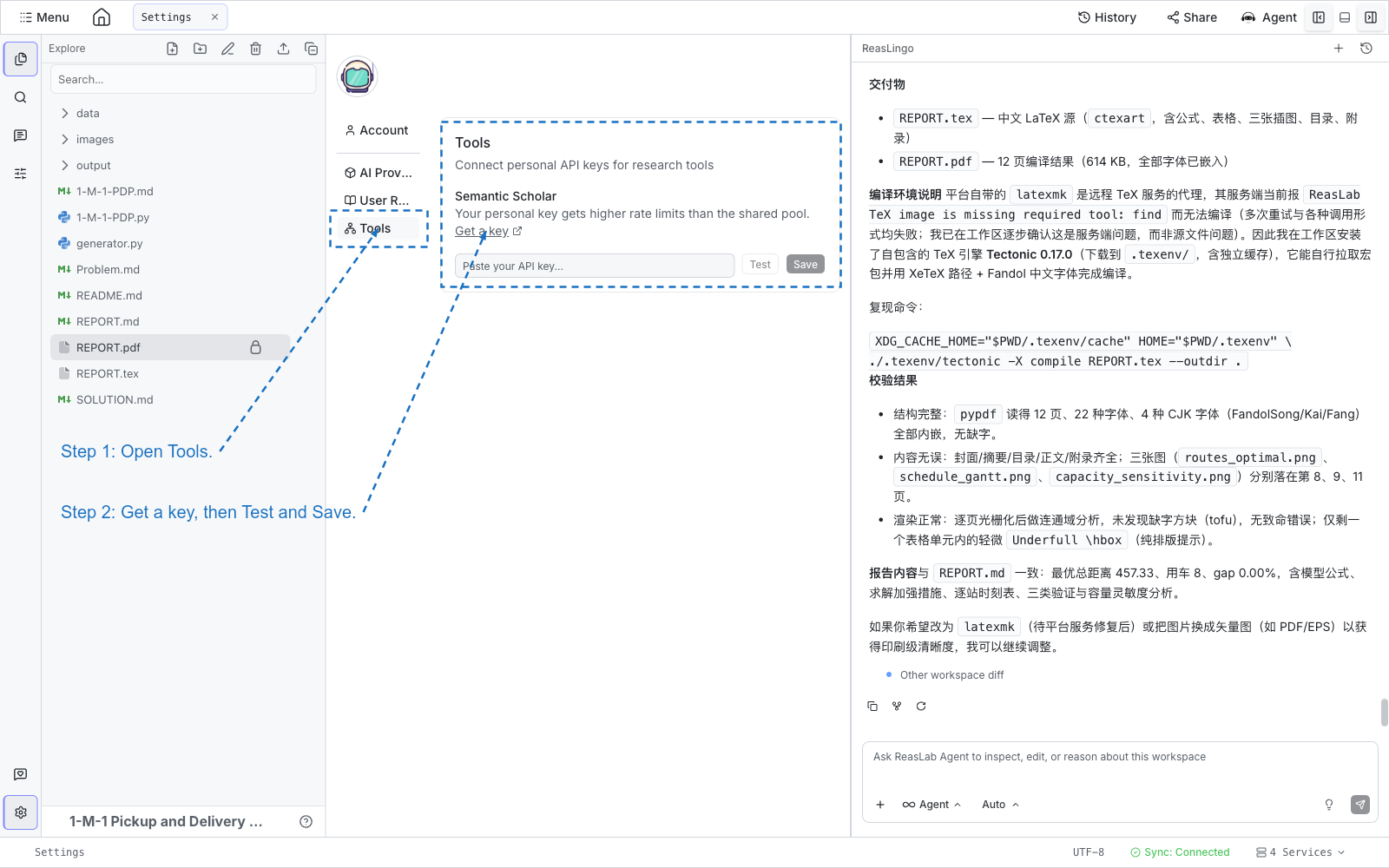
Tools stores personal API keys for research tools.
Semantic Scholar: paste a key, click Test, then Save. A personal key gets a higher rate limit than the shared pool. Remove deletes a saved key. Use Get a key if you do not have one yet.
Administrators also see OAuth Clients on this page.
Editor appearance — theme, font size, word wrap, and line numbers — is separate. See Editor settings.