Lean 4 Tooling
ReasLab provides a browser-based Lean 4 workspace with project setup, language-server feedback, an interactive Infoview, code navigation, Unicode input, search, and AI assistance. This guide follows the current interface using a Mathlib project.
In this guide
Use the sections below according to the task you want to complete:
| Task | Section |
|---|---|
| Start working in a Lean repository | Open a Lean project |
| Understand goals, expected types, and messages | Read a proof state in Infoview |
| Review errors and inline feedback | Diagnostics and Code Lenses |
| Inspect or jump to a declaration | Navigate and rename Lean code |
| Enter mathematical notation | Insert Unicode symbols |
| Find text, definitions, or lemmas | Search for Lean code |
| Resolve common setup or editor problems | Troubleshooting |
Open a Lean project
Open a .lean file from Explorer. ReasLab finds the project root, reads its lean-toolchain and Lake configuration, and prepares the environment before starting the Lean language server.
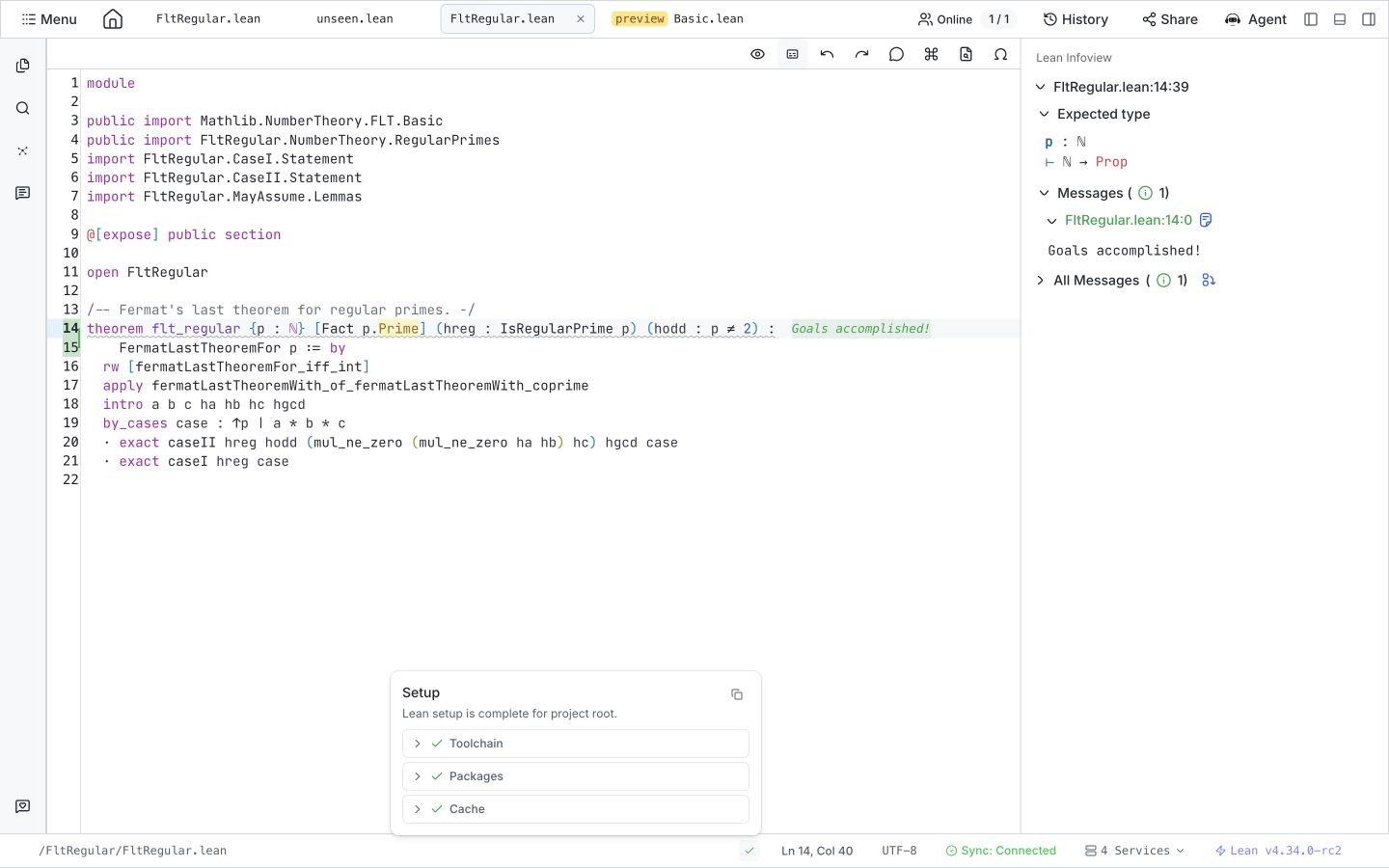
The setup indicator in the bottom status bar reports each preparation stage:
- Toolchain — installs or activates the Lean version requested by the project.
- Packages — resolves and prepares the dependencies declared by Lake.
- Cache — downloads or prepares available caches, including Mathlib caches.
- Status and version — a check mark means setup is complete, while the bottom-right version entry shows the active toolchain, for example
Lean v4.34.0-rc2.
On first use, these stages can take some time, and Infoview remains in a waiting state until they finish. If a stage fails, open the setup panel to inspect its logs and use the retry action shown in the workspace.
Once every stage is ready, ReasLab starts Lean analysis automatically; ordinary edit-and-check work does not require a separate manual build command. For a new project, choose the Lean version and whether to include Mathlib in New Project. For an imported repository, ReasLab follows its existing toolchain and Lake files.
Read a proof state in Infoview
Infoview shows what Lean knows at the current cursor position. Open a Lean file, then select the eye icon, Toggle Lean Infoview, in the editor toolbar.

Move the cursor through a theorem, proof term, or tactic block to inspect:
- Tactic state — open goals, local variables, type-class instances, hypotheses, and the current target after
⊢. - Expected type — the type Lean expects at the current term position.
- Messages — feedback associated with the active location, including a control that returns to its source.
- All Messages — diagnostics and informational output collected for the file.
A completed declaration can show Goals accomplished!. If Infoview shows No info found, move the cursor from blank space into a theorem statement, proof term, or tactic and wait for the active file to finish processing.
Diagnostics and Code Lenses
Lean reports problems and proof progress while you edit, after project setup has completed.
- Errors, warnings, and information appear as editor decorations and gutter markers.
- The same feedback is collected in Infoview under Messages and All Messages.
- Short results such as Goals accomplished! can also appear directly beside the code.
- Show Code Lenses and Hide Code Lenses control these inline results without closing Infoview.
- The bottom status bar shows the active file and progress count while a large file is being processed.
Wait until processing settles before treating a temporary message as final. Diagnostics then stay synchronized with the current document without requiring a separate manual build.
Hover information
Hover information provides a quick summary of a Lean symbol without moving away from the current file.

Place the pointer over a declaration, theorem, lemma, type, or imported symbol to inspect its signature, documentation, and source import. The information comes from the active Lean language server, so it becomes available after project setup and file processing finish.
Use hover when you only need context; use definition navigation when you need to inspect the declaration source.
Navigate and rename Lean code
Right-click a symbol to open the language-aware navigation menu. Use these actions to move between declarations, inspect relationships, or safely rename project symbols.
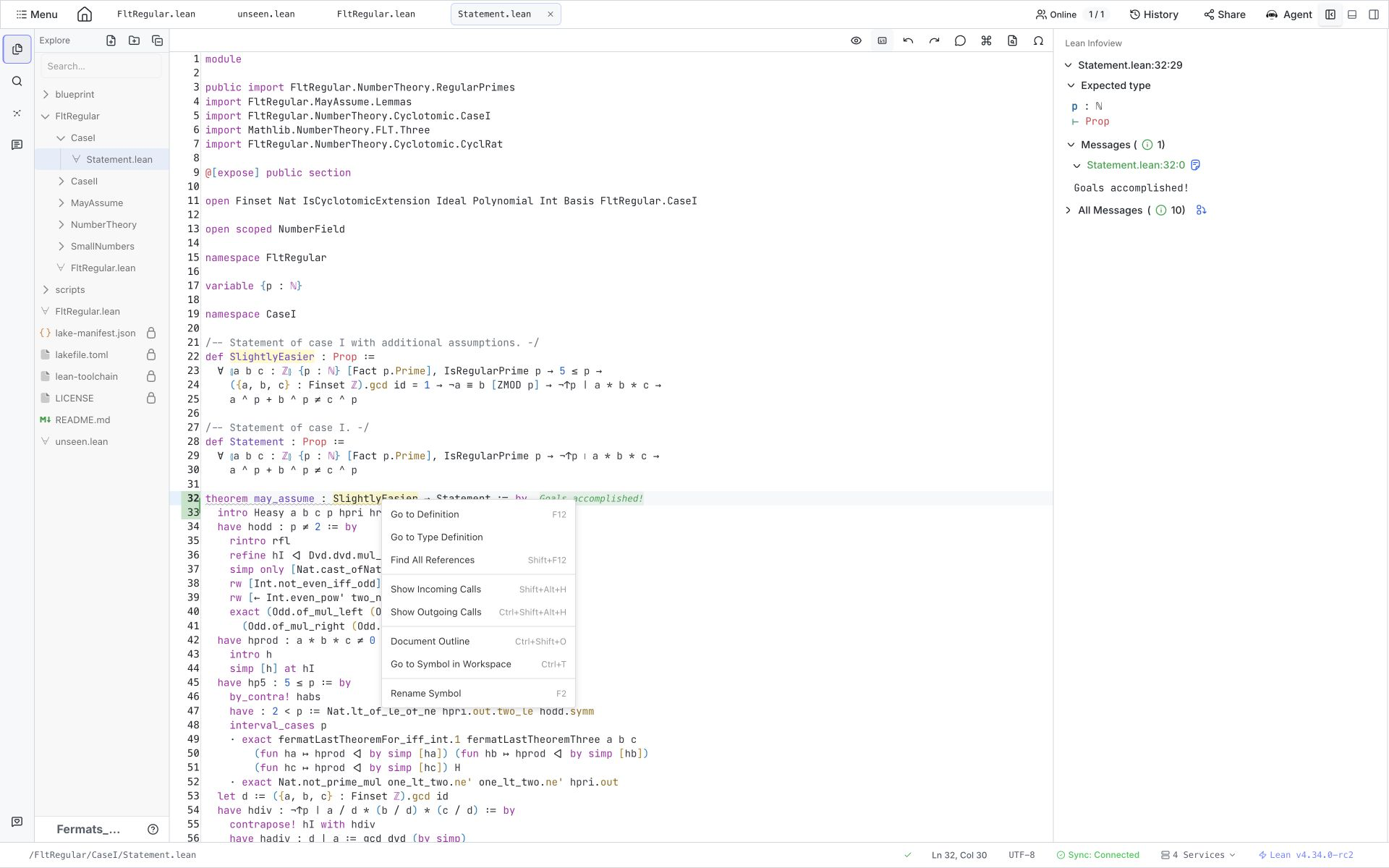
Choose the action that matches your goal:
| Goal | Action |
|---|---|
| Open the symbol declaration | Go to Definition |
| Open the declaration of the symbol type | Go to Type Definition |
| Find every usage | Find All References |
| Inspect callers | Show Incoming Calls |
| Inspect callees | Show Outgoing Calls |
| Browse declarations in the current file | Document Outline |
| Find a workspace symbol | Go to Symbol in Workspace |
| Rename a project symbol | Rename Symbol |
To go to a definition:
- Place the cursor on a declaration, theorem, lemma, type, or imported symbol.
- Right-click and choose Go to Definition.
- ReasLab opens the declaration and moves the cursor to its source location.
Definitions inside the current project open in normal editor tabs. Definitions from Lean, Mathlib, or another dependency open in a read-only preview tab, so you can inspect dependency sources without changing them. Use Go to Type Definition when you need the declaration of the symbol type rather than the symbol itself.
If navigation produces no result, wait for project setup and active-file processing to finish, then place the cursor directly on a resolvable symbol and try again.
Syntax highlighting and editor aids
The editor combines Lean-aware highlighting with general editing controls so that declarations and proof structure remain easy to scan.
- Syntax and semantic tokens distinguish commands, declarations, identifiers, types, tactics, literals, and comments.
- Matching and rainbow-colored brackets help track nested expressions.
- Common single-character brackets and double quotes are closed automatically.
- The toolbar and command palette provide undo, redo, line comments, file search, and other editor actions.
- The status bar shows the active file path, cursor line and column, encoding, sync state, service state, and Lean version.
These aids do not change Lean semantics; they make editing and reviewing longer proof files easier.
Insert Unicode symbols
ReasLab supports both a visual symbol palette and Lean-style backslash abbreviations for entering mathematical notation.

Choose the input method that fits your workflow:
- Open Symbols Palette from the editor toolbar.
- Browse Essential, Greek Letters, Logic & Arrows, Relations, Operators, Sets & Numbers, Brackets & Quotes, and Miscellaneous.
- Search by abbreviation or symbol, then select a result to insert it at the cursor.
- In the editor, type a backslash abbreviation and accept its completion with Space, for example
\forall→∀,\exists→∃,\to→→, and\le→≤. - Hover over an inserted Unicode symbol to see one or more abbreviations that produce it.
Use the palette to discover unfamiliar symbols and backslash completion for faster repeated input.
Search for Lean code
ReasLab provides three search modes. Choose one based on whether you know the exact text, the mathematical idea, or the kind of Lean declaration you need.

| Search mode | Best for | How to use it |
|---|---|---|
| Project Search | Exact text in the current project | Select Project Search in the left activity bar; results are grouped by file and open at the matching line. |
| Semantic Search | Concepts described in natural language or Lean-oriented terms | Select Semantic Search in the activity bar, open Semantic, enter a query, and choose Aggregated Interleaved, Lean Search, Moogle, or State Search. |
| Lean/Local Search | Lemmas, theorems, and definitions available in the current Lean environment | Open Lean/Local and search against declarations available to the project. |
You can also select code in the editor and choose Search with Semantic Search from the context menu. Start with Project Search for a known name, Semantic Search for an idea, and Lean/Local Search when the result must match the current project's environment.
Work with ReasLingo
ReasLingo adds AI assistance beside the editor and Infoview while keeping the active project as context.
- Type
@in chat to reference a project file or folder. - Select code and use Add to Chat to focus a question on a specific proof fragment.
- Ask the agent to explain a proof state, locate a suitable lemma, or draft a proof.
- Check generated Lean code against the live Infoview before accepting it.
ReasLingo can accelerate exploration and drafting, but Lean remains the source of truth for correctness. For an end-to-end workflow, see Lean Formalization.
Troubleshooting
Most missing feedback or navigation results occur because project setup or active-file processing has not finished.
- Infoview is waiting — open the setup indicator and wait for Toolchain, Packages, and Cache to become ready.
- Infoview shows No info found — place the cursor inside a theorem, proof, or tactic and wait for the file to finish processing.
- Hover or navigation is unavailable — confirm setup is complete and the status bar shows the expected Lean version.
- The Infoview panel is missing — select Toggle Lean Infoview in the editor toolbar.
- Inline messages are missing — select Show Code Lenses.
If these checks do not resolve the problem, see Troubleshooting for general workspace and connection diagnostics.