AI Provider Configuration
Before leveraging the AI features of ReasLab, you will need to properly set up your Large Language Model (LLM) credentials to grant the system access to compute engines.
Access Settings
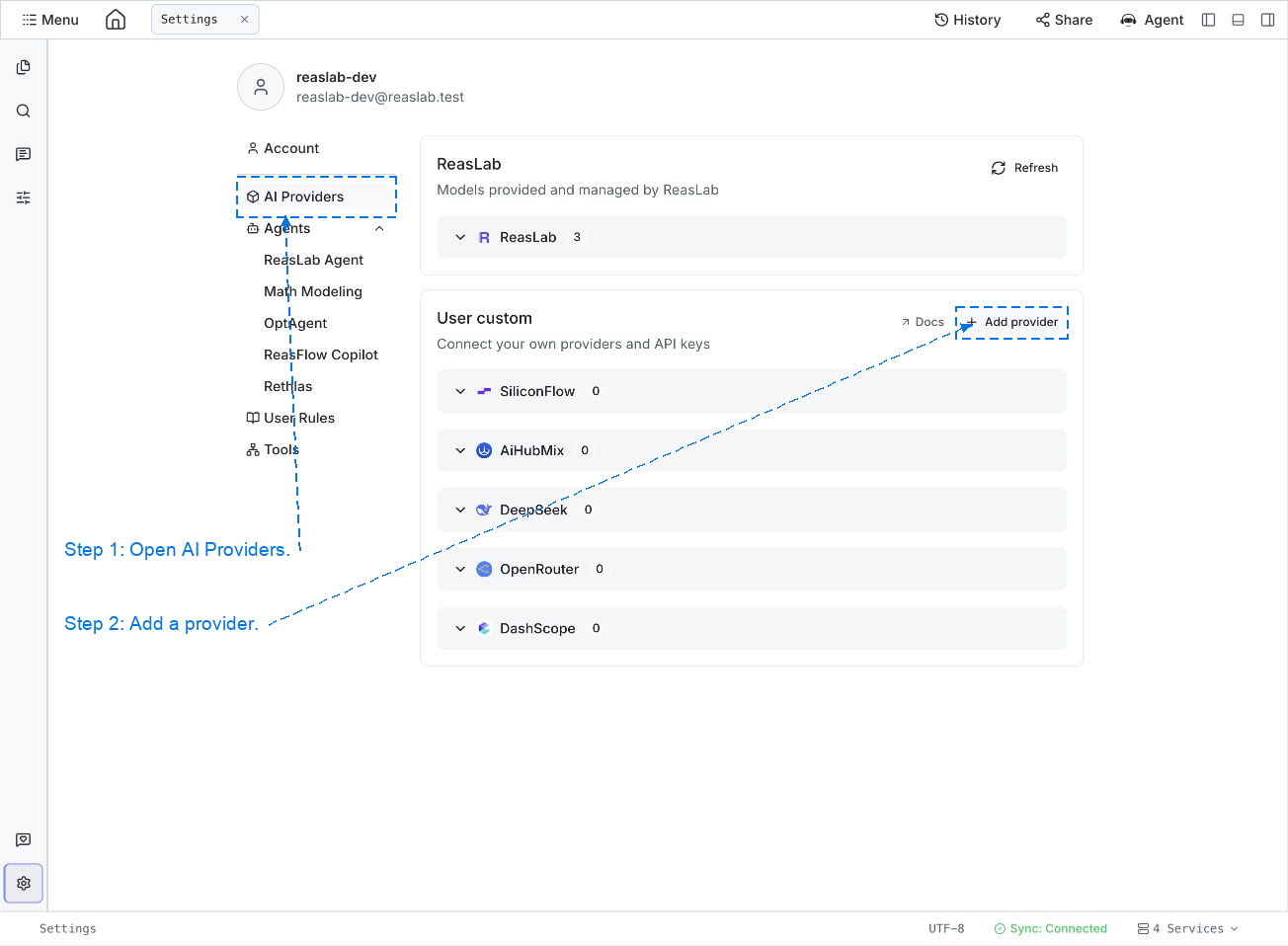
Open Settings from your avatar menu, or click the gear at the bottom of the project sidebar. Then choose AI Providers.
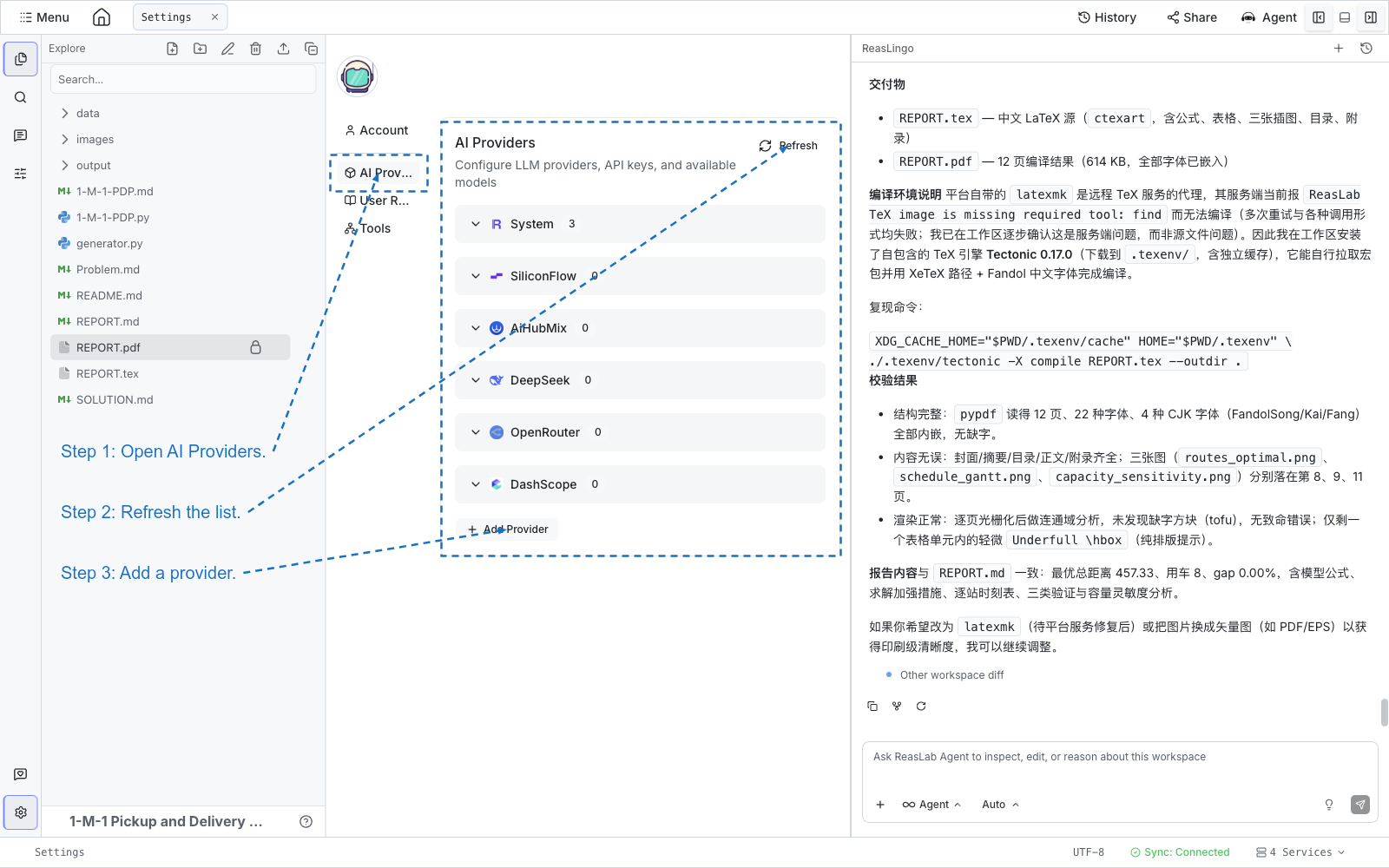
See Settings for the other sections on that page.
Quick-setup providers
The providers below already include a default address and icon. Enter an API key to use them. Any other OpenAI-compatible service can be added from + Add Provider with its Base URL and API key.
- SiliconFlow — Multi-model API gateway
- AiHubMix — Developer-oriented hybrid AI platform
- DeepSeek — Cost-effective Chinese LLM. Current models are DeepSeek-V4.1-Flash and DeepSeek-V4-Pro.
- OpenRouter — Unified model routing service
- DashScope — Alibaba Cloud Qwen series
- BlackAI Coding — Chinese AI API gateway for coding models
- Yixin AI — One-stop AI capability aggregation platform
Common configurations for Chinese developers:
| Provider | Base URL | Typical Models |
|---|---|---|
| DeepSeek | https://api.deepseek.com | deepseek-flash, deepseek-v4-pro |
| SiliconFlow | https://api.siliconflow.cn | deepseek-ai/DeepSeek-V4-Flash, deepseek-ai/DeepSeek-V4-Pro |
| AiHubMix | https://aihubmix.com/v1 | deepseek-v4.1-flash |
| BlackAI Coding | https://blackaicoding.com/v1 | deepseek-flash, deepseek-v4-pro |
| Yixin AI | https://yxai.chat/v1 | deepseek-flash, deepseek-v4-pro |
Add a New Provider
- Scroll to the bottom of the provider list and click + Add Provider.
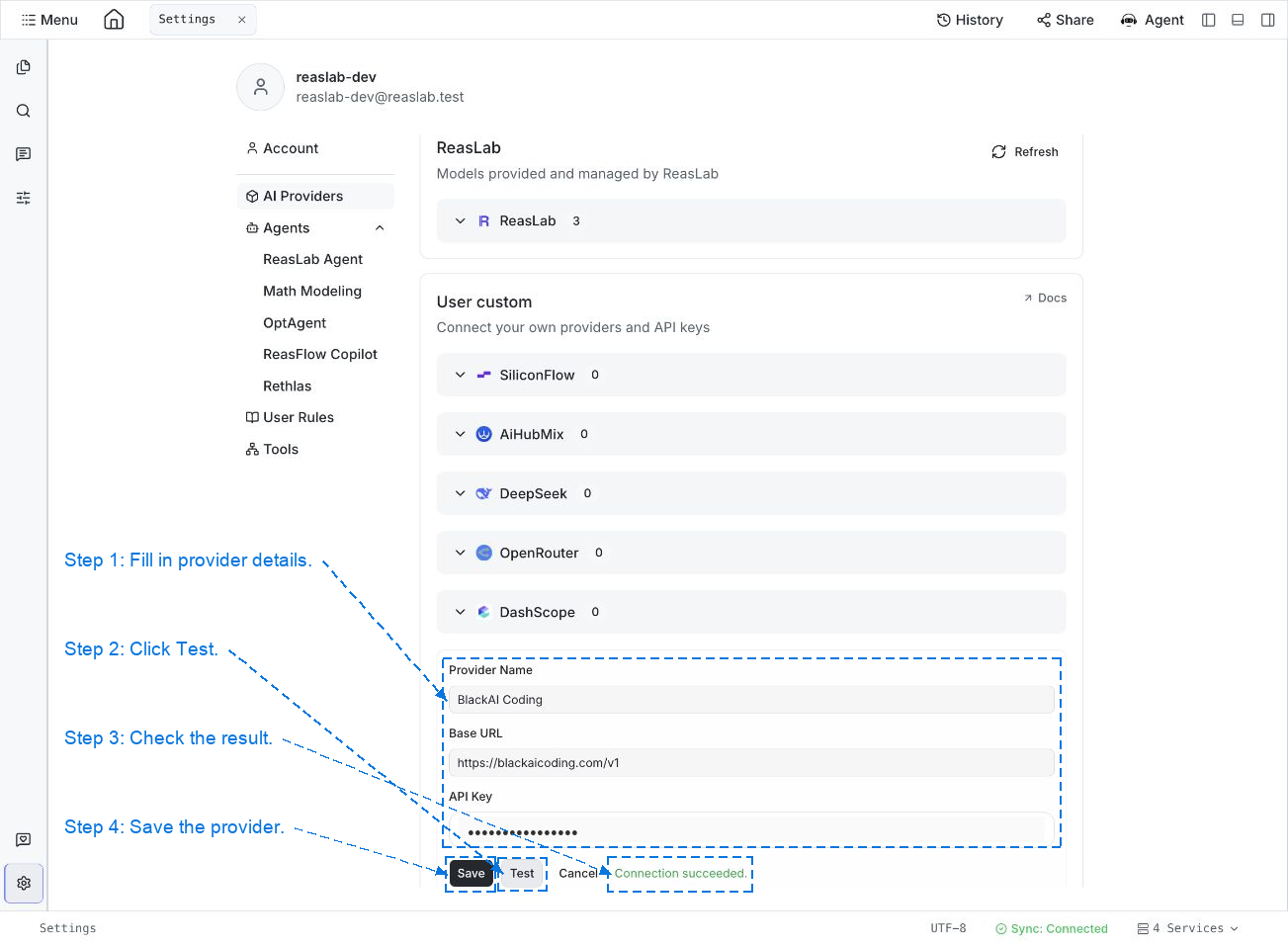
- Enter a Display Name for the provider (e.g.,
DeepSeek,SiliconFlow). - Fill in the Base URL (API endpoint) as documented by the provider.
- Securely paste your API Key — ReasLab encrypts stored credentials and never exposes them in frontend logs.
- Click Save to confirm.
Add a Specific Model
After a provider is configured, register the concrete model instances you want to invoke:
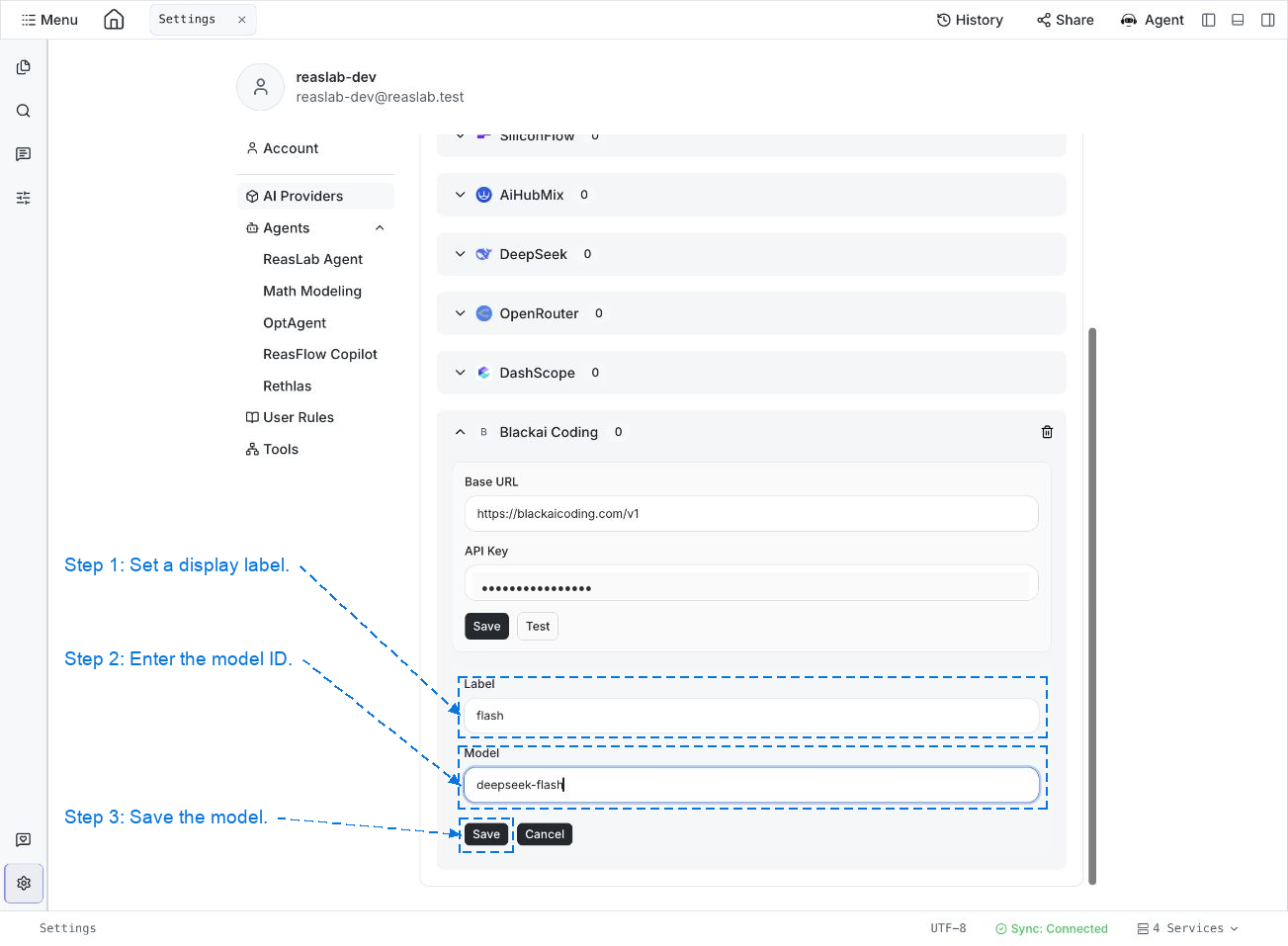
- Click + Add Model in the same panel.
- Set a Label — a friendly name visible only in your workspace UI (e.g.,
deepseek-flash-work). - Enter the exact Model ID recognized by the upstream API (e.g.,
deepseek-flash). - Click Save.
Your custom models will now appear in the LLM dropdown at the bottom of the chat interface, ready for queries and automated agent tasks.