Sign Up & Sign In
Getting started with ReasLab takes about a minute. Everything runs in the browser — no local installation is required. Visit reaslab.io and choose one of the two ways below to create your account and sign in.
Method 1: Sign up with email
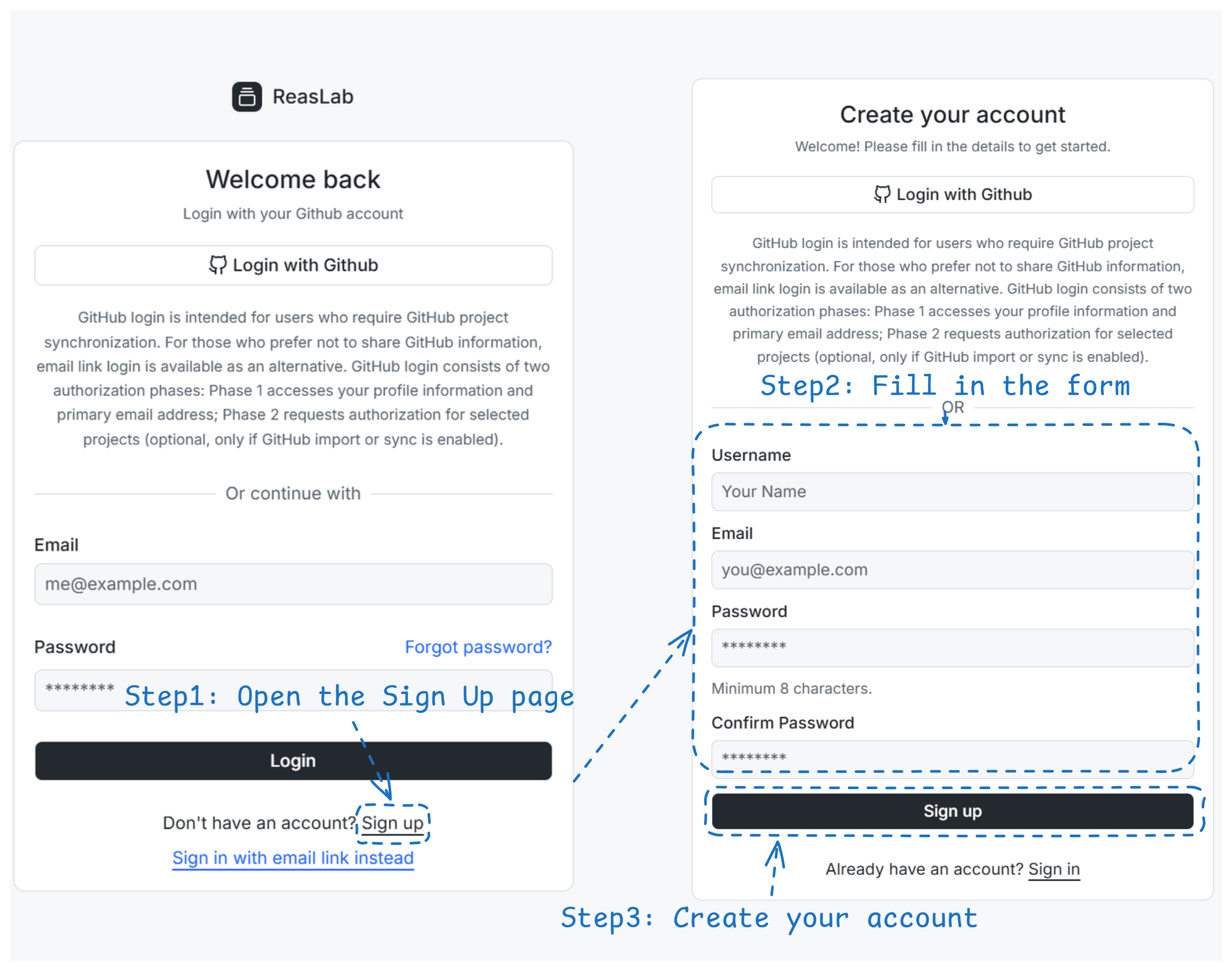
- Open the Sign Up page and fill in the form:
- Username: 3–20 characters, starts with a letter or
_, and contains only letters, digits,_, or-. - Email: a valid email address.
- Password: at least 8 characters.
- Confirm Password: must match the password.
- Username: 3–20 characters, starts with a letter or
- Click Sign Up. A verification email is sent to your inbox.
- Open the email and click the verification link (valid for 15 minutes) to activate your account.
- Go back to the Sign In page and log in with your email and password.
Tip: If the link expires, simply request a new verification email and try again.
Method 2: Sign in with GitHub
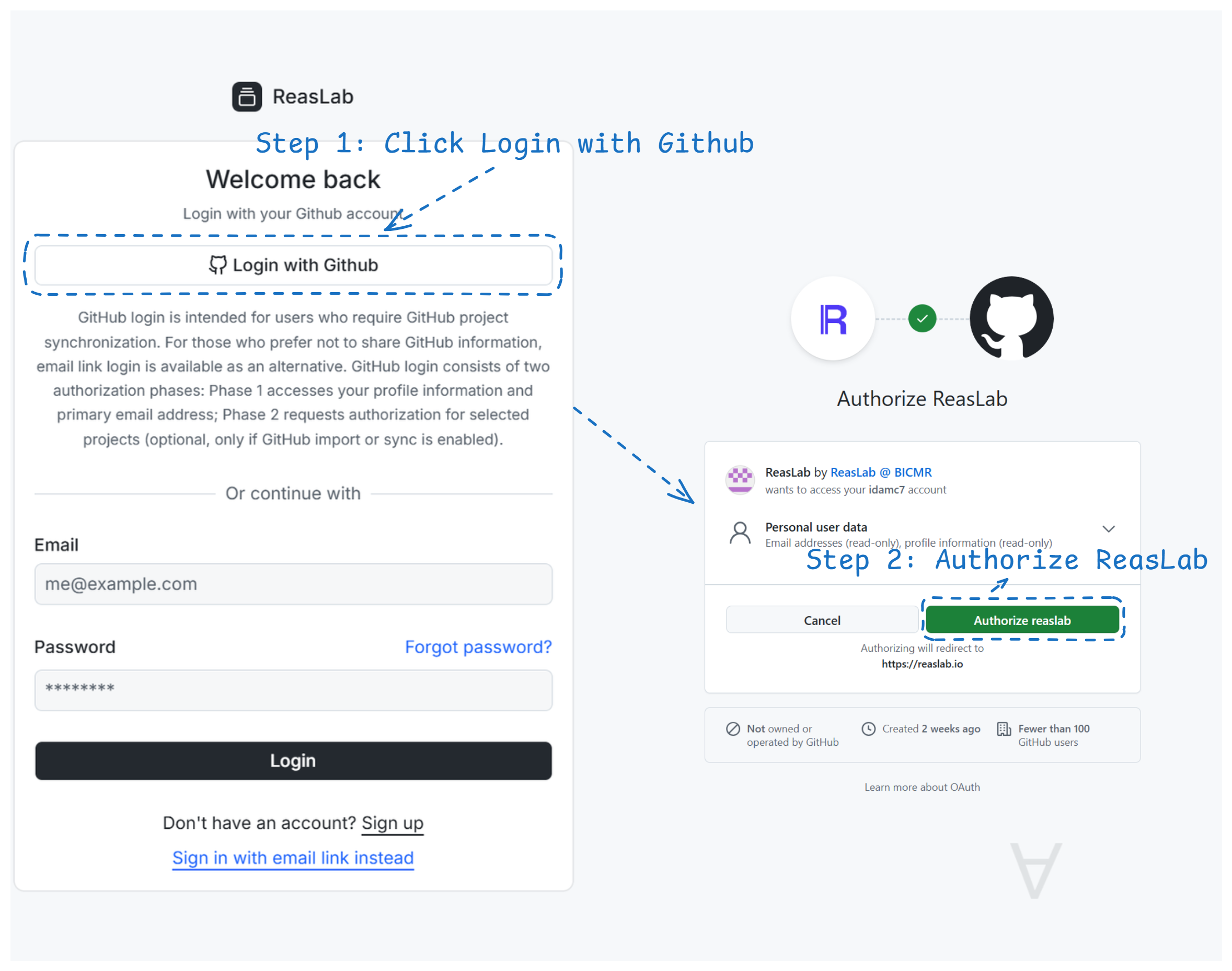
Prerequisites:
- Network access to GitHub: This method redirects to GitHub for authorization, so you need a network environment that can reach GitHub normally. If GitHub is not accessible on your network, use email sign-up instead.
- A verified email on GitHub: Your GitHub account must have at least one verified email address. The email does not need to be public, but it has to be verified in your GitHub account settings — otherwise sign-in cannot complete.
- On the Sign Up or Sign In page, click Login with Github.
- On the GitHub authorization page, approve access to your basic profile and email.
- You are redirected back and signed in automatically. On your first sign-in, an account is created for you — no extra username or password needed.
Note: If you later want to import or sync your GitHub repositories, install the ReasLab GitHub App from inside the app. See the Projects & Imports guide.
After you sign in
Once signed in, you land on the Projects page, where you can create a new project, import an existing repository, or join a shared project.
Continue with the Projects & Imports guide to start your first project.